View Submission Details
(Updated 1/1/2026)
View Submission Essentials
- All or selected file type Edit roles (e.g. SENR Edit roles)
- All or selected file type View roles (to view file type details when troubleshooting an error)
- Student Search (to be able to search a SSID when troubleshooting an error )
The View Submission Details page provides an authorized user with the details of a submitted file. This page is accessed when the user clicks on the View action button next to the particular file in the View Submission page as well as the Job Name link.
The View Submission Details page is broken up into multiple sections:
- Header
- View Errors
- Summaries
- Errors (filterable results)
- Details
- View detail – modal that displays the complete submitted record
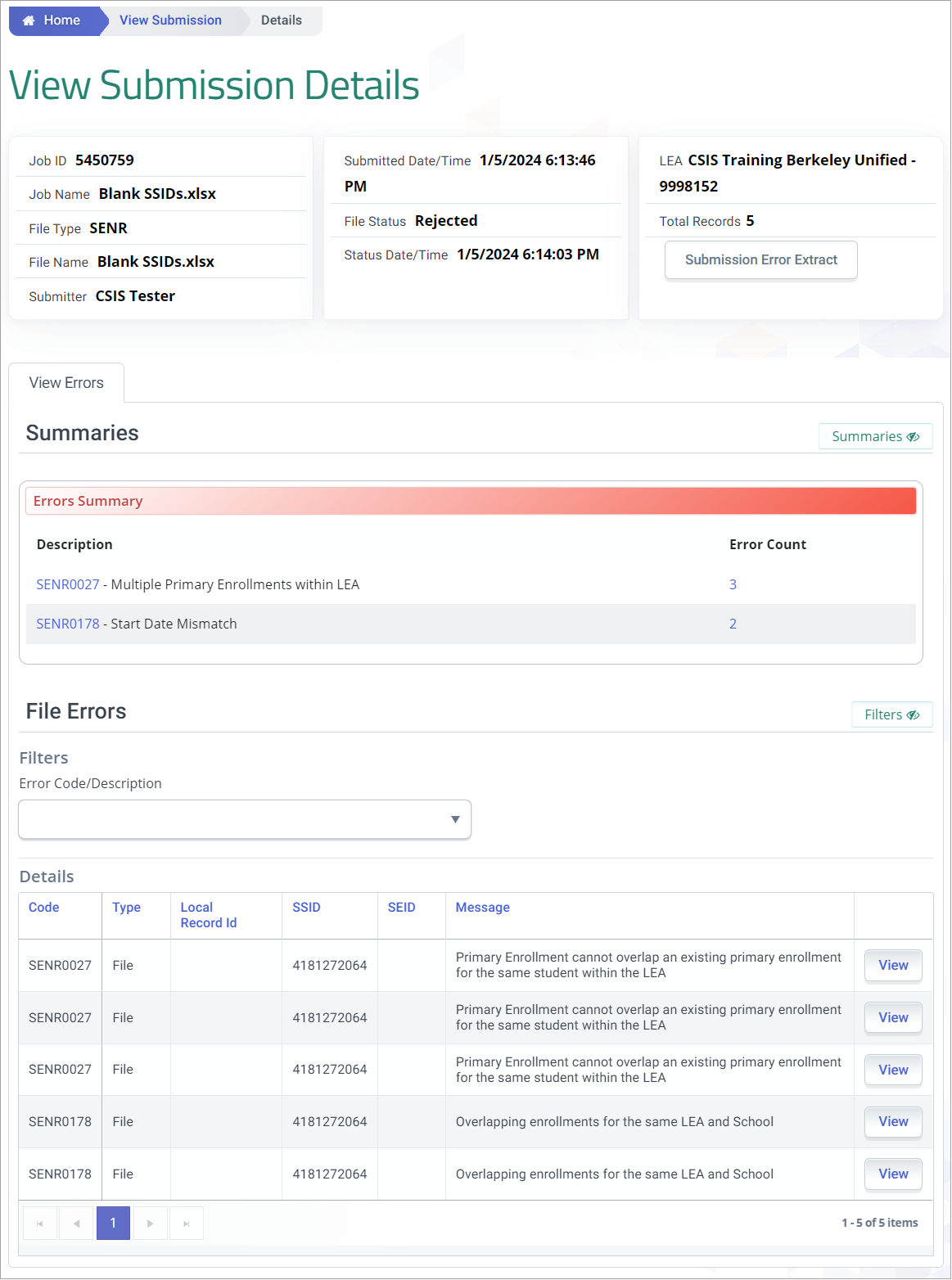
An authorized user may perform the following functions on this interface:
- View the details of Passed records for one or all the schools in a selected file
- View the details of Rejected records for one or all the schools in a selected file
- Return to the View Submission page to view the selected file results
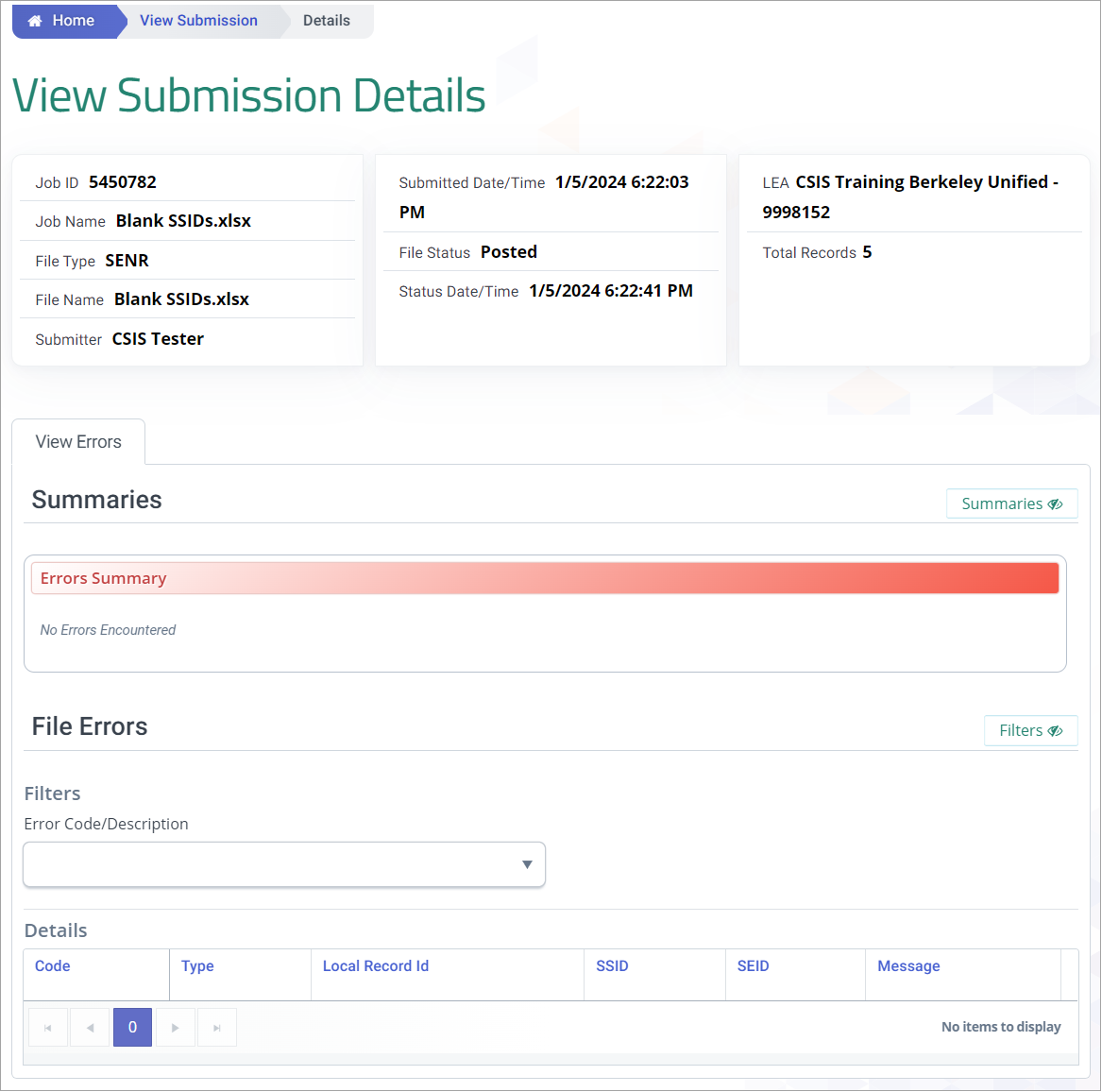
View Submission Details (Posted Records)
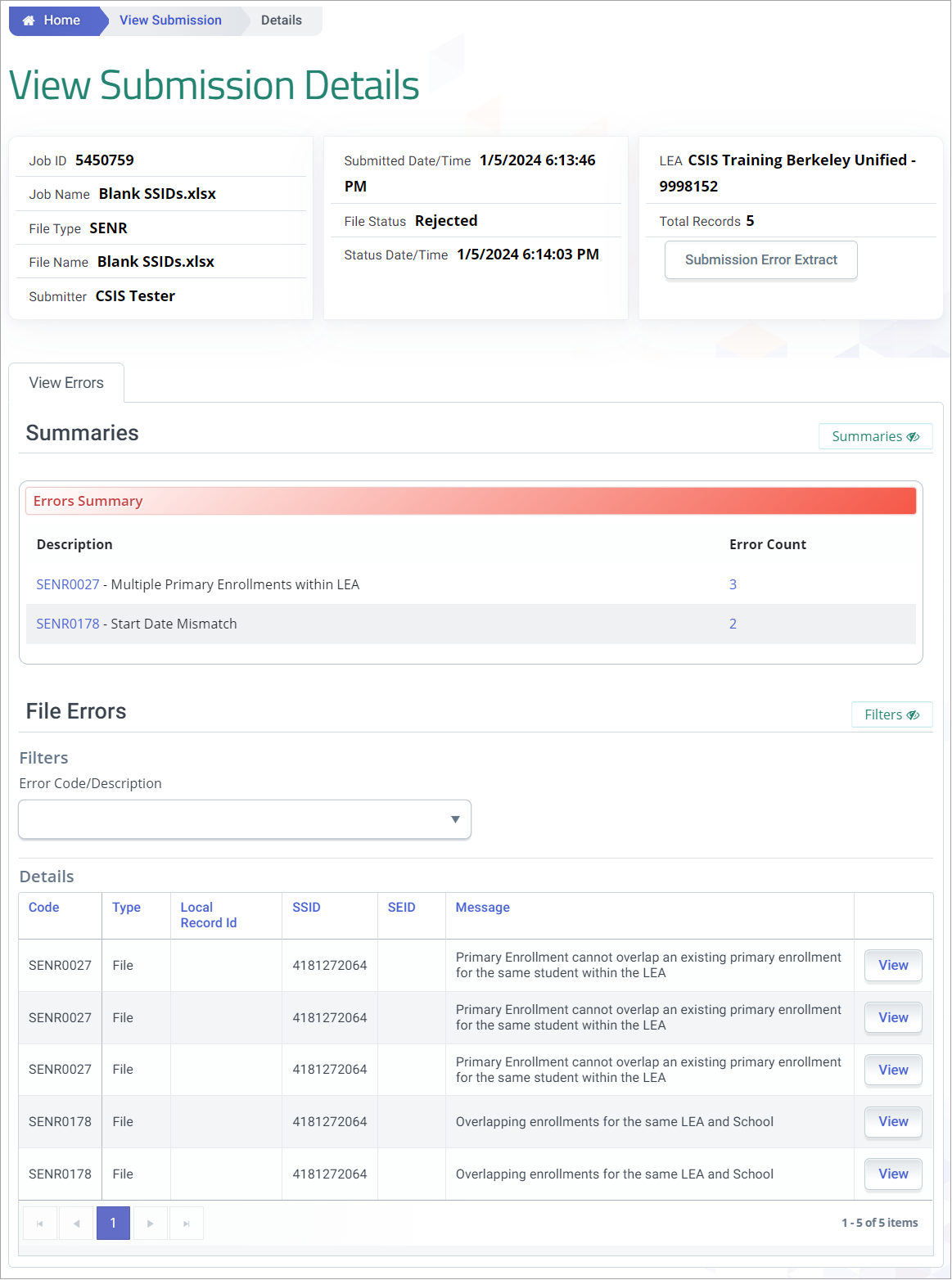
View Submission Details (Rejected Records)
A. View Submission Header Details
This section displays detailed information about a submitted CALPADS file, allowing users to review the submission’s key metadata and processing status. It includes the Job ID, Job Name, File Type, File Name, and Submitter, along with the Submitted Date/Time and the most recent File Status and Status Date/Time. The section also identifies the associated LEA and the Total Records included in the submission. When a submission is rejected, users can access the Submission Error Extract to review validation errors and determine corrective actions.
| # | Screen Label | Field Description | Validation / Business Rules |
|---|---|---|---|
| 1 | Job ID | CALPADSJobID | Sortable low-to-high and high-to-low. |
| 2 | Job Name | User-supplied job name | Sortable low-to-high and high-to-low. |
| 3 | File Type | N/A | N/A |
| 4 | File Name | N/A | N/A |
| 5 | Submitter | UserID | N/A |
| 6 | Submitted Date/Time | Date/time file submitted | N/A |
| 7 | File Status | Submission Status Key | N/A |
| 8 | Status Date/Time | Date/time job achieved current status | N/A |
| 9 | LEA | Name – CDS Code | Limited by user’s organization. |
| 10 | Total Records | N/A | Count of records in the file regardless of whether the file status is Posted or Rejected. |
B. View Errors
View Errors displays a summary of errors encountered while processing the selected file.
| # | Screen Label | Field Description | Validation / Business Rules |
|---|---|---|---|
| — | Errors Summary | Errors Summary | Fatal errors for this record type only. If no errors exist, “No Errors Encountered” is displayed in the Error Summary grid. |
| 1 | Description | Error Code – Short Description (Error Code links to the CALPADS Wiki) |
N/A |
| 2 | Error Count | Number of records that contain this error | Count |
C. File Errors List
Error Details filters and displays contents that are consistent across record types. Outlined below are the filters and display elements common to all file types.
| # | Screen Label | Field Description | Validation / Business Rules |
|---|---|---|---|
| — | Filters | Filters | Errors specific to the record type of the file. |
| 1 | Error Code / Description | N/A | Limited to errors associated with the submitted record type. Error Code links to the CALPADS Wiki. |
| — | Details | Details | N/A |
| 2 | Code | N/A | N/A |
| 3 | Type | N/A | N/A |
| 4 | Local Record ID | Local student identifier | N/A |
| 5 | SSID | N/A | N/A |
| 6 | SEID | N/A | N/A |
| 7 | Message | Error message | N/A |
| 8 | View | N/A | Opens the Record Detail modal. |