Certification Details – SELPA Approval
When a SELPA User selects the "Certification Status" link in left navigation, or a State-level user selects the "SELPA Approval" hyperlink under "Certification Status" navigation, the system displays the "Certification Details – SELPA" page.
This interface has the following functionalities for a selected Submission:
- Required Filters for the SELPA, Academic Year, and Submission.
- View the status of all associated LEAs per Filter Options with corresponding statuses and total fatal errors.
- View the SELPA Aggregate and Supporting Reports related to the Submission.
- Approve or Disapprove a Revision once an LEA has approved it.
SELPA Approval Applies to Fall 1 and EOY 1 Only
SELPA approval is required only for Fall 1 and EOY 1 submissions. Fall 2 and EOY 2 submissions do not involve SELPA approval.
Required User Roles
Users need to have a SELPA level org type and the following roles to access this section of CALPADS.
- Data Collection Certifier (only required to certify)
- EOY1 Reports
- Fall1 Reports
Certification Details Interface
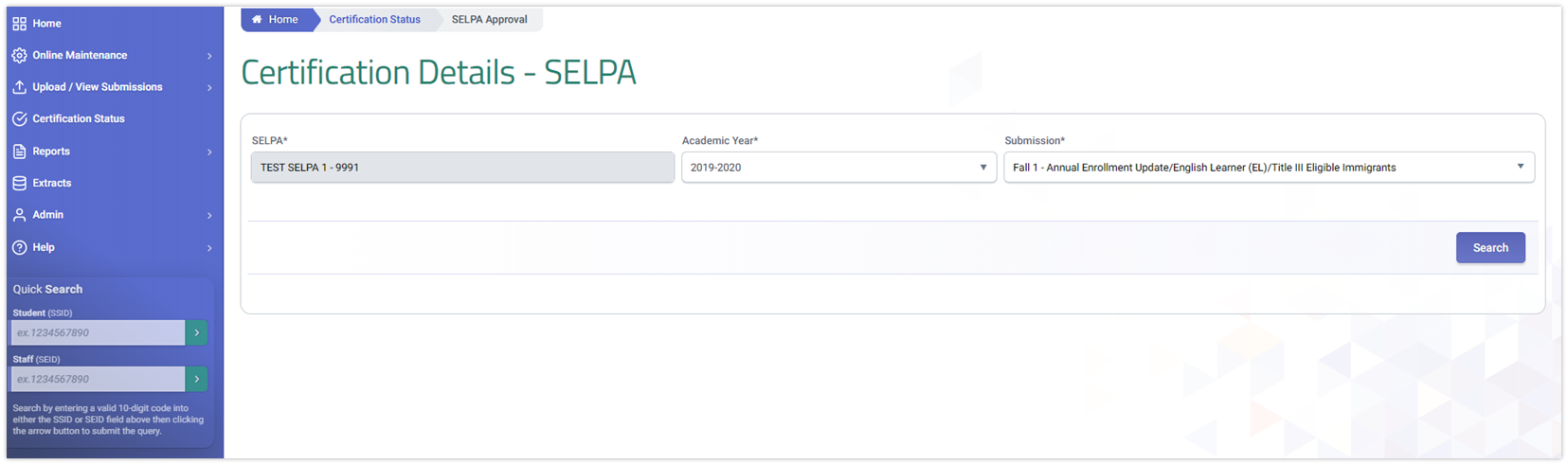
The Certification Status – SELPA UI is depicted below, followed by screen element tables describing the available filter and result fields.
Certification Status Filter Table
| Screen Label | Validation / Business Rule |
|---|---|
| SELPA | Organization associated with the user's SELPA account. Only State-level users may change the value. |
| Academic Year | Reverse chronological order starting with the current academic year. SELPA users may not select an AY prior to 2019–2020. Defaults to the active EOY AY (e.g., 2024–2025 if submission ends after July 1, 2025). |
| Submission | Shows only Fall 1 and EOY 1. Leaving it blank reveals all available SELPA submissions as of the filter date. |
| Search Button | Executes search based on selected filter options. |
SELPA Certification Details Results Interface
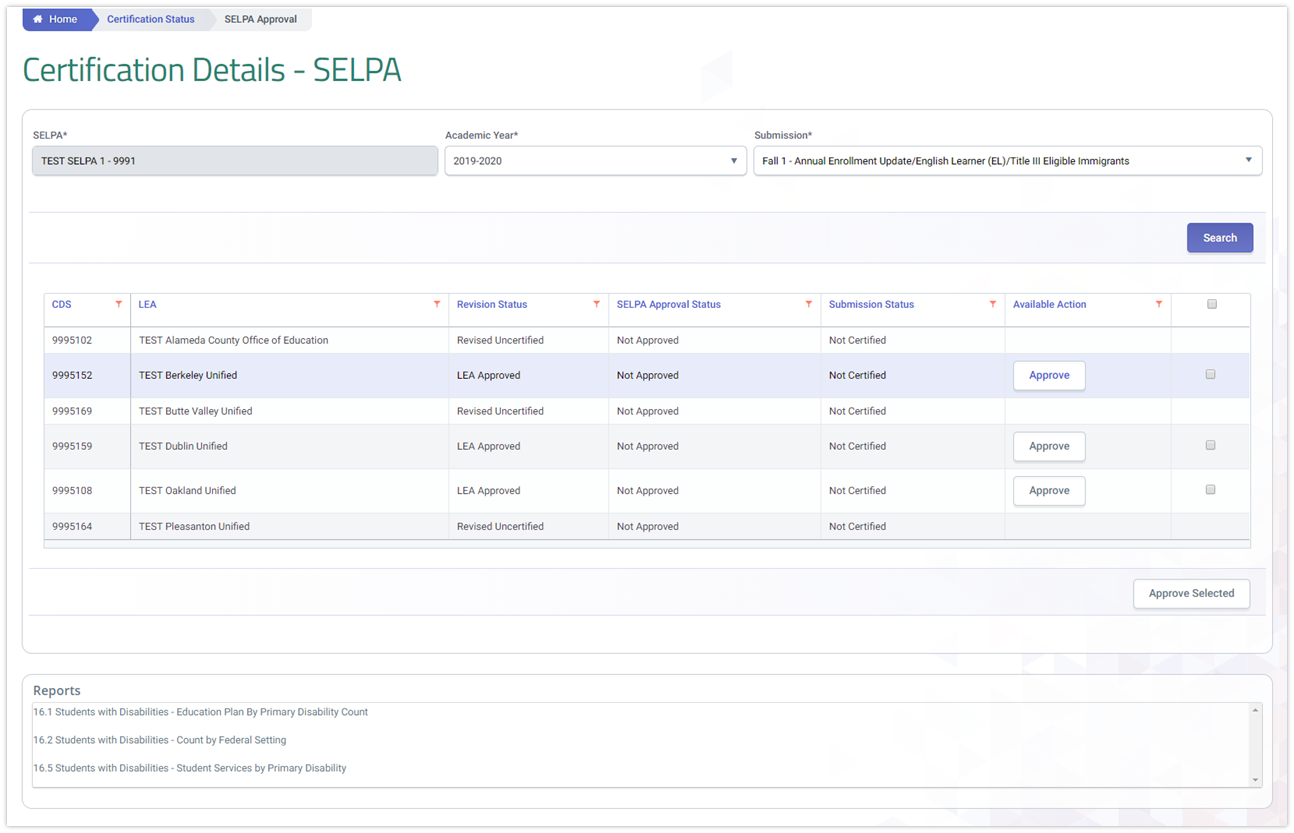
When a SELPA user selects the appropriate submission period and clicks the Search button, the system expands the page and displays the Certification Details Results section with the list of LEAs under the SELPA's jurisdiction and each LEA's current submission status.
Results Details Table
| Screen Label | Validation / Business Rule |
|---|---|
| CDS | County District School code of the LEA. Hyperlink to the Certification Summary & Details page. |
| LEA Name | Name of the associated LEA. |
| Revision Date | Date of the Revision with the most progress. |
| Revision ID | Unique ID created by the system to differentiate each revision. |
| Total Fatal Errors | Count of fatal errors for the selected Revision. |
| Revision Status | Status of the Revision with the most progress. Displays the highest value per Revision Availability business rules. |
| SELPA Approval Status | The status of the individual SELPA's approval for the given LEA and Revision. Values: Not Approved, Approved, Disapproved. |
| Certification Status | Overall certification status of the Submission. See Appendix A for complete business rules. |
| Available Action | Conditionally available button set to Approve or Disapprove based on business rules below. |
| Select All | Checkbox to multi-select rows where the Approve button is active. |
| Approve Selected | Commits mass approvals for all selected rows. Requires confirmation message. |
Reports Available to SELPAs
SELPAs may review the following reports before approving an LEA's submission.
| Report Number | Report Name |
|---|---|
| 16.1 | Students with Disabilities – Education Plan By Primary Disability Count |
| 16.2 | Students with Disabilities – Count by Federal Setting |
| 16.5 | Students with Disabilities – Student Services by Primary Disability |
SELPA Approval Buttons – Business Rules
The following table explains what action a SELPA may take on a Revision, based on the combination of the Revision Status and the individual SELPA's approval status. The SELPA may only Approve or Disapprove a Revision once an LEA has Approved it. Because an LEA may withdraw their approval by Disapproving, this also affects a SELPA's ability to Approve.
Key Rule
A SELPA may only approve or disapprove a Revision after the LEA has first approved it. If the LEA disapproves, the SELPA's Available Action button is disabled.
SELPA Approval or Disapproval – Available Action Button
| If…. | And If Revision Status is | Then SELPA Approval Status for the individual SELPA changes to | AND Available Action Button is… |
|---|---|---|---|
| Revision is first created | Revised Uncertified | Not Approved | Disabled |
| LEA Manually checks In Review checkbox | In Review Uncertified | Not Approved | Disabled |
| LEA Reviews all required Certification Reports* | Revised Uncertified or In Review Uncertified | Not Approved | (No change) |
| LEA Approves Revision | LEA Approved | Not Approved | Enabled — "Approve" |
| LEA Disapproves Revision | LEA Disapproved | NO STATUS CHANGE | Disabled |
| SELPA Approves Revision** | LEA Approved | Approved | Enabled — "Disapprove" |
| All SELPAs Approve Revision** | SELPA Approved | NO STATUS CHANGE (Approved) | Enabled — "Disapprove" |
| SELPA Disapproves Revision | SELPA Disapproved | Disapproved | Enabled — "Approve" |
| A different SELPA associated with the revision disapproves | SELPA Disapproved | Approved | Enabled — "Disapprove" |
** Revision Status changes still depend on the complete sum of all SELPAs associated with the LEA.
Multiple SELPAs
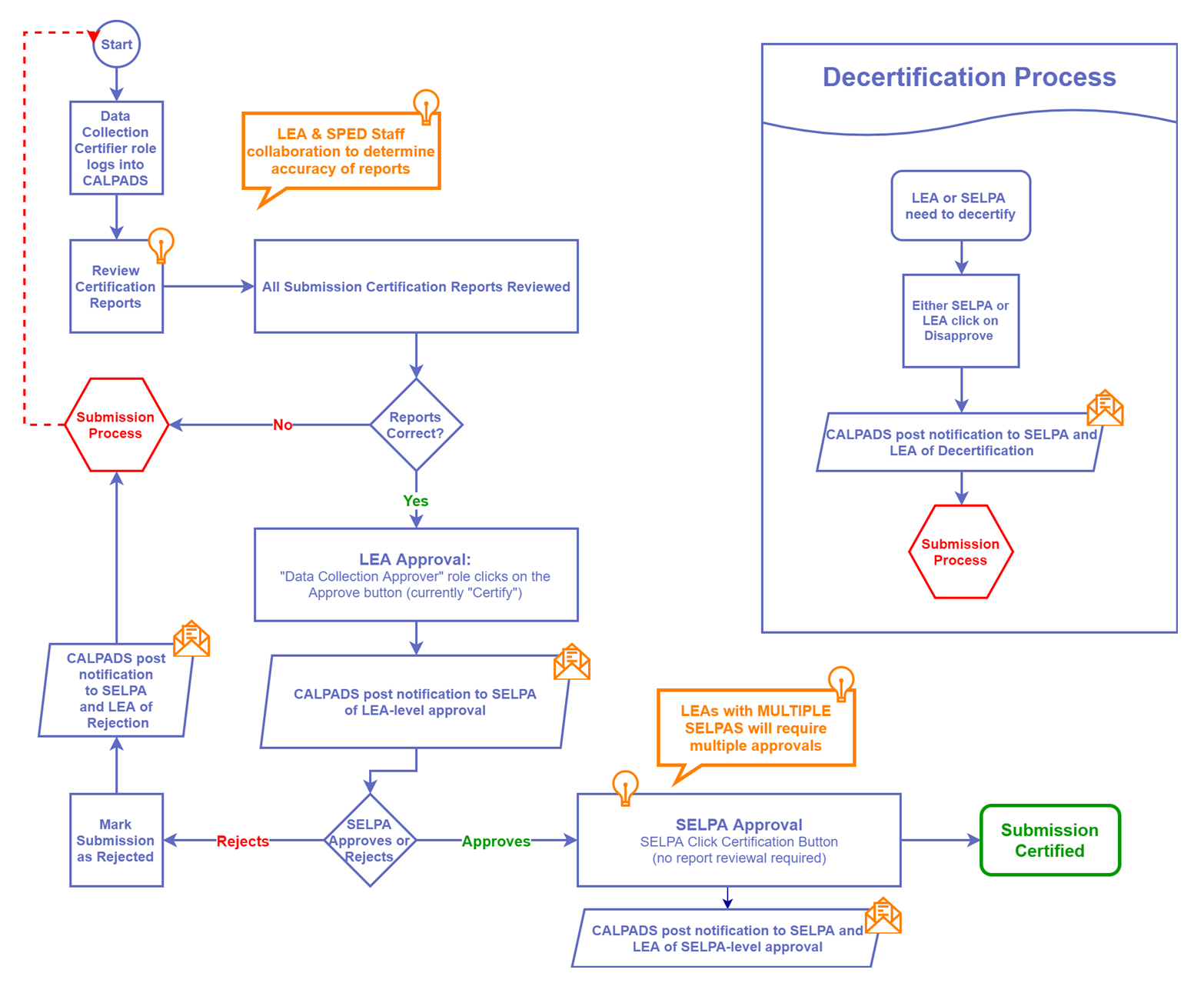
If an LEA has multiple associated SELPAs, all must approve the revision before the Revision Status changes to SELPA Approved and the Submission Status changes to Certified. It only takes one SELPA to disapprove to revert the Submission Status to Uncertified.
LEA Certification Process
There are two varying certification processes that LEAs will encounter depending on the submission.
This is a brief illustration of the certification process that LEAs and SELPAs will follow for Fall 1 and EOY 1 submissions.
Fall 2 and EOY 2 submissions do not involve SELPA approval. SELPA users will not see these submissions in their filter options.
See the Certification Process page for complete status change tables and workflow details.
Email Notifications
Email notifications are sent to:
- The LEA's active Data Certifier Role(s) associated with the LEA of the submission.
- The active SELPA Approvers at each of the LEA's associated SELPAs.
Note
Emails are not sent to inactive accounts, and are not sent to SELPAs for non-SELPA submissions (Fall 2, EOY 2).
Email Subject:
CALPADS – Action Taken on <Academic Year> <Submission Code> for <LEA Name and CDS>
Example: CALPADS – Action Taken on 2024-25 Fall1 Submission for ABC Unified – 0112345
Action Message Templates – Fall 1 and EOY 1
| Action | Message Inserted |
|---|---|
| LEA Approves Revision | <USER FIRST AND LAST NAME> at <LEA Name-CDS> has approved Revision ID <REVISION ID> and is ready for SELPA review/approval. The submission is <CERTIFICATION STATUS> |
| SELPA Approves Revision (not all SELPAs yet) | <USER FIRST AND LAST NAME> at SELPA <SELPA Code and Name> has approved Revision ID <REVISION ID>, but further SELPA approvals are still required. The submission is <CERTIFICATION STATUS> |
| All required SELPAs Approve Revision | <USER FIRST AND LAST NAME> at SELPA <SELPA Code and Name> has provided final SELPA approval of Revision ID <REVISION ID>. The submission is <CERTIFICATION STATUS> |
| LEA Disapproves Revision | <USER FIRST AND LAST NAME> at <LEA Name-CDS> has disapproved Revision ID <REVISION ID>. The submission is <CERTIFICATION STATUS> |
| SELPA Disapproves Revision | <USER FIRST AND LAST NAME> at SELPA <SELPA Code and Name> has disapproved Revision ID <REVISION ID>. The submission is <CERTIFICATION STATUS> |
Action Message Templates – Fall 2 and EOY 2
| Action | Message Inserted |
|---|---|
| LEA Approves Revision | <USER FIRST AND LAST NAME> at <LEA Name-CDS> has approved Revision ID <REVISION ID>. The submission is <CERTIFICATION STATUS> |
| LEA Disapproves Revision | <USER FIRST AND LAST NAME> at <LEA Name-CDS> has disapproved Revision ID <REVISION ID>. The submission is <CERTIFICATION STATUS> |
Additional Resources
CALPADS Snapshot and Revision Video
This video clip covers the details of the CALPADS Snapshot Revision statuses and functionality through a live demo.
CALPADS Certification Process Playlist Video
This playlist provides an in-depth discussion and demonstration of the CALPADS Submission Certification process.
Certification Details - SELPA Approval
When a SELPA User selects the “Certification Status” link in left navigation or a State level user selects the “SELPA Approval” hyperlink under the “Certification Status” navigation, the system will display the “Certification Details – SELPA” page.
This interface has the following functionalities for a selected Submission:
- Required Filters for the SELPA, Academic Year, and Submission
- View the status of all associated LEAs per Filter Options with corresponding statuses and total Fatal errors.
- View the SELPA Aggregate and Supporting Reports related to the Submission
- Approve or Disapprove a Revision once an LEA has approved it.
Required User Roles
Users need to have and LEA level org type and the following roles to access this section of CALPADS.
- Data Collection Certifier (Only required to certify)
- EOY3 Reports
- EOY4 Reports
- Fall1 Reports
Certification Details Interface
The Certification Status UI is depicted immediately below followed by a screen elements table, a user interaction section, and a system operations section with the available system functions, requirements and possible processes that may occur through this interface.
Certification Status Filter Table
| Screen Label | Validation/Business Rule |
|---|---|
| SELPA | Organization associated with user’s SELPA account. |
| Academic Year | Reverse chronological order starting with current academic year. Start selection at the AY 19/20, does not allow SELPA user to choose any AY prior to 19/20 |
| Submission | Should only show choice for Fall1, EOY3, EOY4. Leaving it blank will reveal all available submissions as of the date of filtering. |
| Search Button | Clicking on it executes search based on selected filter options. |
SELPA Certification Details Results Interface
When a SELPA user selects the appropriate submission period and click on the Search button, the system will expand the page and display the Certification Details Results section with the list of LEAs under the SELPA jurisdiction and each LEAs current submission status. This interface has the following functionalities for a selected submission:
- View the status of all associated LEAs per Filter Options with corresponding statuses.
- View the SELPA Aggregate and Supporting Reports related to the Submission
- Approve or Disapprove a Revision once an LEA has approved it.
Results Details Table
| Screen Label | Validation/Business Rule |
|---|---|
| CDS | Hyperlink to Certification Summary & Details page. |
| LEA Name | Only Orgs associated with user’s account are available. |
| Revision Status | Status of the Revision with the most recent progress |
| SELPA Approval Status | The status of the individual SELPA’s approval for this given LEA and Revision. Value is set by the system based on what action the SELPA has taken to approve, or disapprove. |
| Certification Status | List all Submission Period during the academic year. Leaving it blank will reveal all available submissions as of the date of filtering. |
| Available Action | Conditionally available button that can either Approve, Disapprove, if enabled |
| Select All | Ability to multi-select certain rows. Only available for rows where Approve button is activated. |
| Approve All | Button to commit mass approvals |
Reports
SELPAs may review the following reports before approving an LEA's submission.
| Report Number | Report Name |
|---|---|
| 16.1 | Students with Disabilities - Education Plan By Primary Disability Count |
| 16.2 | Students with Disabilities - Count by Federal Setting |
| 16.5 | Students with Disabilities - Student Services by Primary Disability |
SELPA Approval Buttons - Business Rules
The following table explains what Available Action a SELPA may take on a Revision, based on the combination of the Revision Status and individual SELPA approval status of the Revision. The SELPA may only Approve or Disapprove a Revision once an LEA has Approved it. And because an LEA may withdraw their approval by Disapproving it, this will affect a SELPA’s ability to Approve.
SELPA Approval or Disapproval – Available Action Button
|
If …. |
And If Revision Status is |
Then SELPA Approval Status for the individual SELPA changes to |
AND Available Action Button is… |
|
Revision is first created |
Revised Uncertified |
Not Approved |
Disabled |
|
LEA Manually checks In Review checkbox |
In Review Uncertified |
Not Approved |
Disabled |
|
LEA Reviews all required Certification Reports* |
Revised Uncertified or In Review Uncertified |
Not Approved |
|
|
LEA Approves Revision |
LEA Approved |
Not Approved |
Enabled and set label to “Approve” |
|
LEA Disapproves Revision |
LEA Disapproved |
NO STATUS CHANGE |
Disabled |
|
SELPA Approves Revision* |
LEA Approved |
Approved |
Enabled and set label to “Disapprove” |
|
All SELPAs Approves Revision* |
SELPA Approved |
NO STATUS CHANGE (Approved) |
Enabled and set label to “Disapprove” |
|
SELPA Disapproves Revision |
SELPA Disapproved |
Disapproved |
Enabled and set label to “Approve” |
|
A different SELPA associated with the revision, Disapproves Revision |
SELPA Disapproved |
Approved |
Enabled and set label to “Disapprove” |
*Revision Status changes still depend on the complete sum of all SELPAs associated to the LEA.
LEA Certification Process
There are two varying certification process that LEAs will encounter depending on the submission.
Fall 1, EOY 3 and EOY 4
This is a brief illustration of the certification process that LEAs and SELPAS will doing for the indicated submissions.
Additional Resources
CALPADS Snapshot and Revision Video
This video clip covers the details of the CALPADS Snapshot Revision statuses and functionality through a live demo.
CALPADS Snapshot and Revision Video
This playlist provides an in-depth discussion and demonstration of the CALPADS Submission Certification process.