RealTime Extracts
(Updated 6/10/2026)
An LEA may request an extract of the current data contained in the Operational Data Store for each record type submitted to CALPADS. All of the RealTime extracts will update throughout the day and will no longer require nightly processing to update. The CALPADS RealTime Extract file may be used to compare and identify differences between the CALPADS data and the data in the local student information system.
Note
Any non-SINF extracts that include demographic information will use the SSID's most recent SINF record to populate required demographics (e.g., SENR Student Birth Date will come from the most recent SINF record of the SSID).
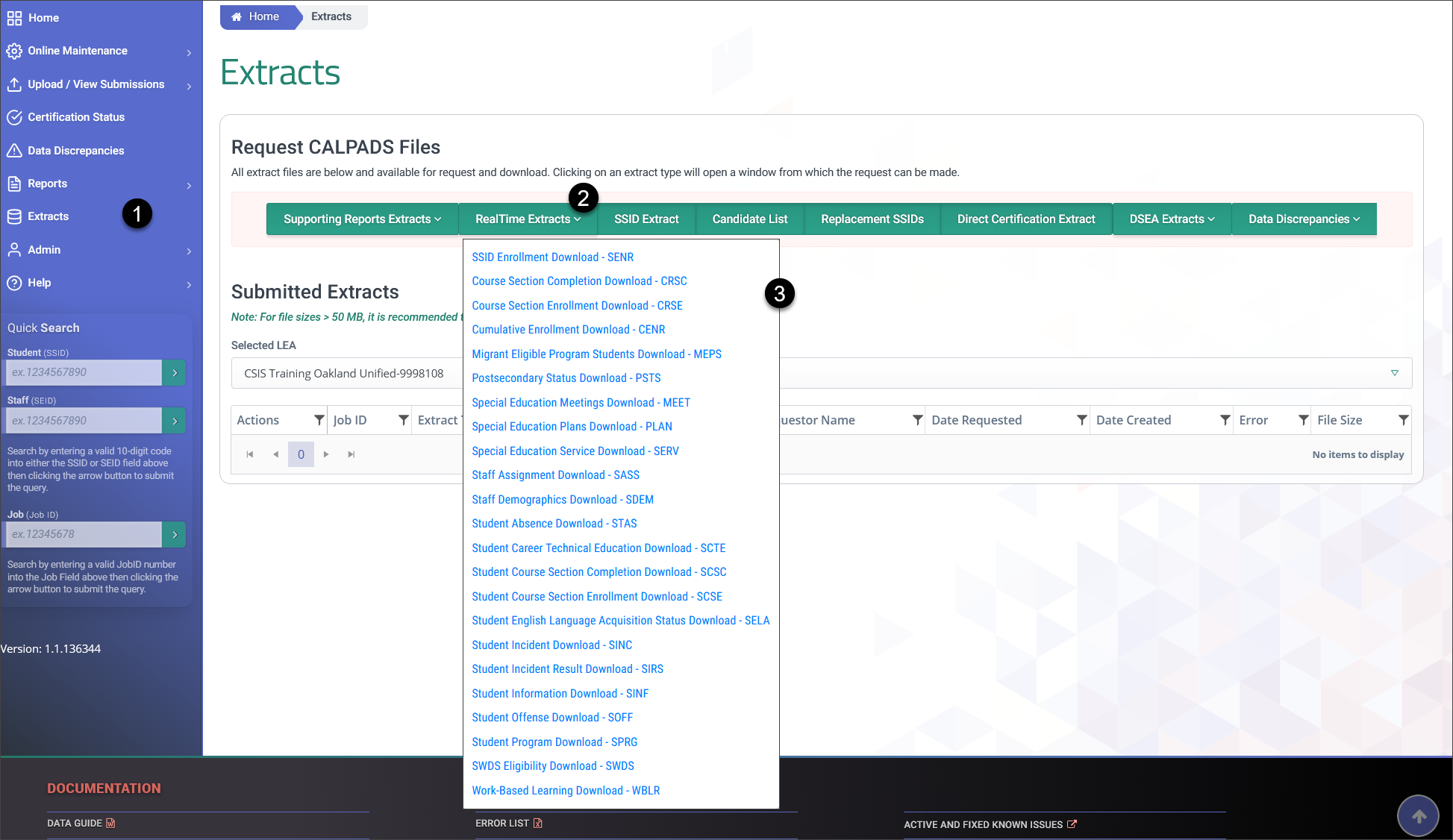
 Click on Extracts link from the Left Navigation menu.
 Locate and click the RealTime Extracts option from the request CALPADS file buttons
 Select the appropriate file type from the dropdown menu
RealTime Extracts User Roles
LEA Level RealTime Extracts Roles
Below are the roles needed by a LEA user to request and download extracts. Essentially, the View role to a specific file type needs to be assigned.
- SENR View
- SINF View
- SPRG View
- SELA View
- SWDS View (For SWDS, MEET, PLAN, SERV extracts)
- SDEM View
- SASS View
- CRSE View (For CRSE and CRSC extracts)
- SCSE View (For SCSE and SCSC extracts)
- STAS View
- SINC View (For SINC, SIRS, SOFF extracts)
- PSTS View
- PSTS For SPED Students View
- LEAP View
SELPA Level RealTime Extracts Role
SELPA users can download SWDS, MEET, PLAN, SERV, and PSTS RealTime extracts if the following roles are assigned.
- SELPA Reports Role (For SWDS, MEET, PLAN, SERV, and PSTS extracts)
Record Layout
The RealTime Extract file is structured like the input file with the addition of two fields, upload date and last date updated, at the end of each record. Additionally, the Record Type Code will have a '-R' appended to the Input Record Type Code. The valid Record Type Codes for the RealTime Extract files are provided in the table below.
Record Type Codes
| # | Record Type | Input Record Type Code | RealTime Extract Record Type Code |
|---|---|---|---|
| 1. | SSID Enrollment | SENR | SENR-R |
| 2. | Student Information | SINF | SINF-R |
| 3. | Student English Language Acquisition | SELA | SELA-R |
| 4. | Student Program | SPRG | SPRG-R |
| 5. | Student Incident | SINC | SINC-R |
| 6. | Student Incident Result | SIRS | SIRS-R |
| 7. | Student Offense | SOFF | SOFF-R |
| 8. | Staff Demographics | SDEM | SDEM-R |
| 9. | Staff Assignment | SASS | SASS-R |
| 10. | Course Section Enrollment | CRSE | CRSE-R |
| 11. | Course Section Completion | CRSC | CRSC-R |
| 12. | Student Course Section Enrollment | SCSE | SCSE-R |
| 13. | Student Course Section Completion | SCSC | SCSC-R |
| 14. | Student Career Technical Education | SCTE | SCTE-R |
| 15. | Student Absence Summary | STAS | STAS-R |
| 16. | Postsecondary Status | PSTS | PSTS-R |
| 17. | Work-Based Learning | WBLR | WBLR-R |
| 18. | Students with Disabilities | SWDS | SWDS-R |
| 19. | Special Education Meetings | MEET | MEET-R |
| 20. | Special Education Plans | PLAN | PLAN-R |
| 21. | Special Education Services | SERV | SERV-R |
| 22. | Local Educational Agency Program | LEAP | LEAP-R |
File Format
The extract file created will be in caret delimited format with no end cap delimiter. The structure of the file will conform to the order and data type listed in the Record Type Codes table above. The date formats will follow the same formats required for the CALPADS File Formats (Format: CCYYMMDD, e.g. 20081025).
File Transmission
An LEA may request a RealTime Extract file for a record type through the CALPADS portal. The RealTime Extract function allows an authorized user to specify selection criteria where applicable and request a file be created by the CALPADS application. The generated file will be available for download through CALPADS. The file will not be transmitted via email.
Request and Download Process for SELA, SWDS, MEET, PLAN, and SERV.
The process below depicts the process in requesting and downloading a RealTime file extract for SELA, SWDS, MEET, PLAN, and SERV.
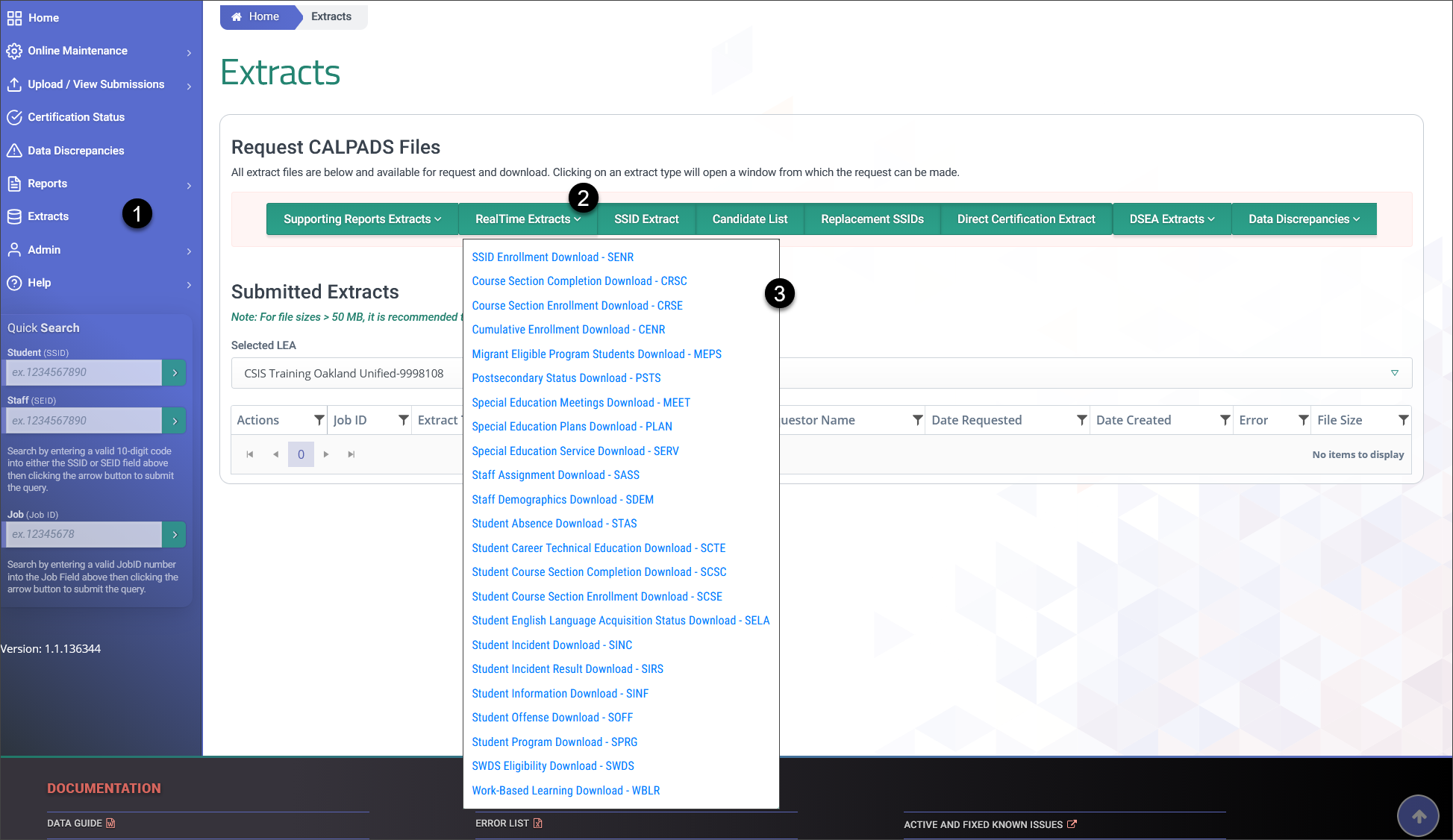
Click on Extracts link from the Left Navigation menu.
Locate and click the RealTime Extracts option from the request CALPADS file buttons
Select the appropriate file type from the dropdown menu
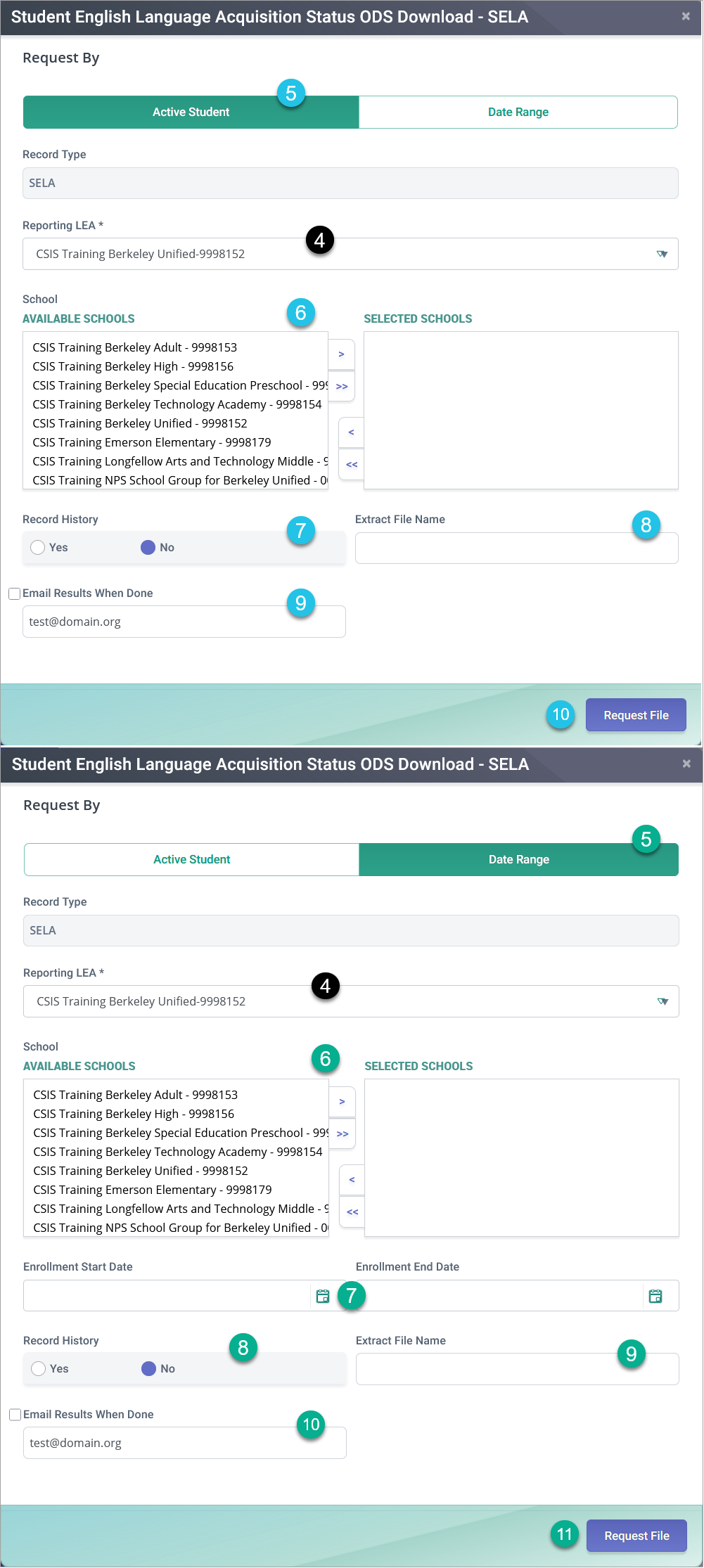
 By default, the selected record type and the LEA user is associated to is populated.


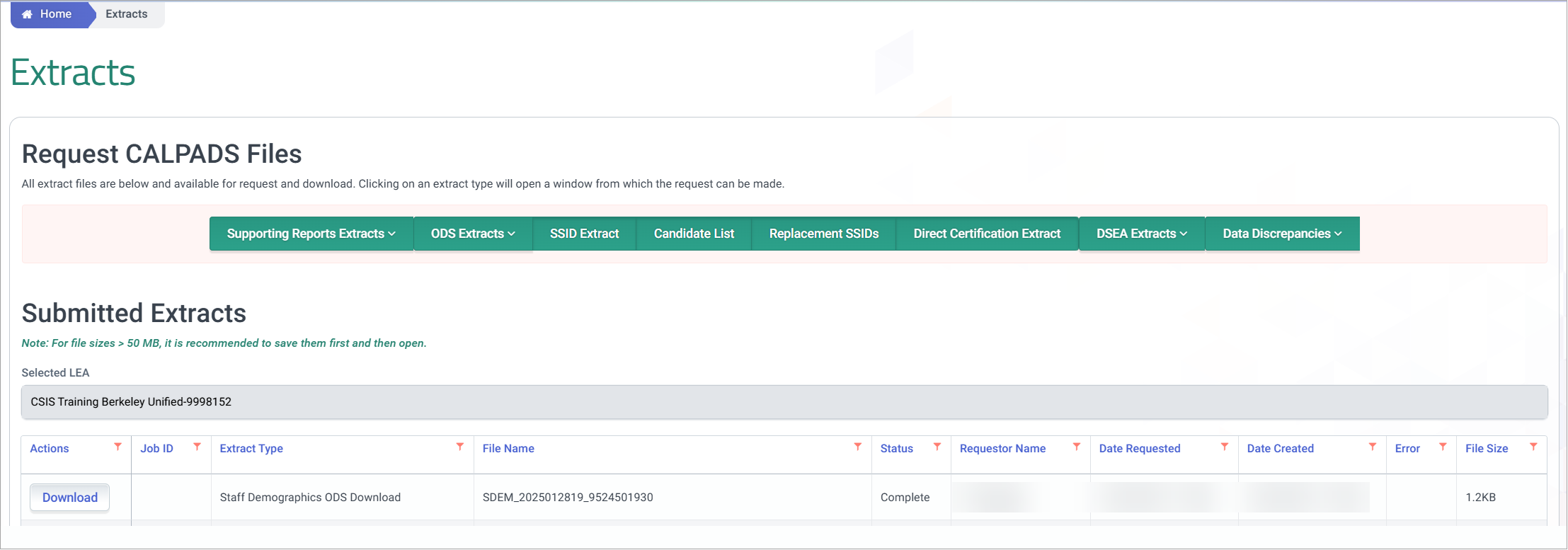
Under Submitted Extracts, locate your file request and click on Download once the requested file is ready.
Record History Results Matrix
The table below lists the expected matching behavior and resulting extracts based on the user's Record History and Modal tab selections.
| All | Most Recent Only | |
|---|---|---|
| Active | Generates last 5 years of status for actively enrolled students. | Generates only the most recent status of actively enrolled students. |
| Date Range | Generates last 5 years of status for enrolled students within the date range. | Generates only the most recent status for enrolled students within the date range. |
Request and Download Process for other files.
The process below depicts the process in requesting and downloading a RealTime file extract for the remaining types of files.
Click on Extracts link from the Left Navigation menu.
Locate and click the RealTime Extracts option from the request CALPADS file buttons
Select the appropriate file type from the dropdown menu
By default, the selected record type and the LEA user is associated to is populated.


Under Submitted Extracts, locate your file request and click on Download once the requested file is ready.
Extract Modal Email Notification Functionality
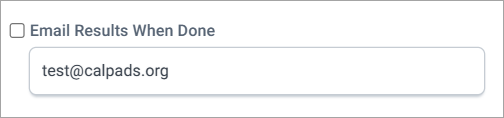
This option allows users to be notified, through email, when a submitted extract request is ready for download. Each extract modal will have the following features:
- Optional Checkbox titled: "Email Results When Done"
- Email Field
- The email address associated to the CALPADS User Profile requester will be autofilled. However, the user can also provide an email address to override this default.
Extract Modal Email Notification Message
Upon request for a CALPADS extract availability email notification, a user will receive an email with the following details. The user will be required to authenticate prior to downloading the extract request file.
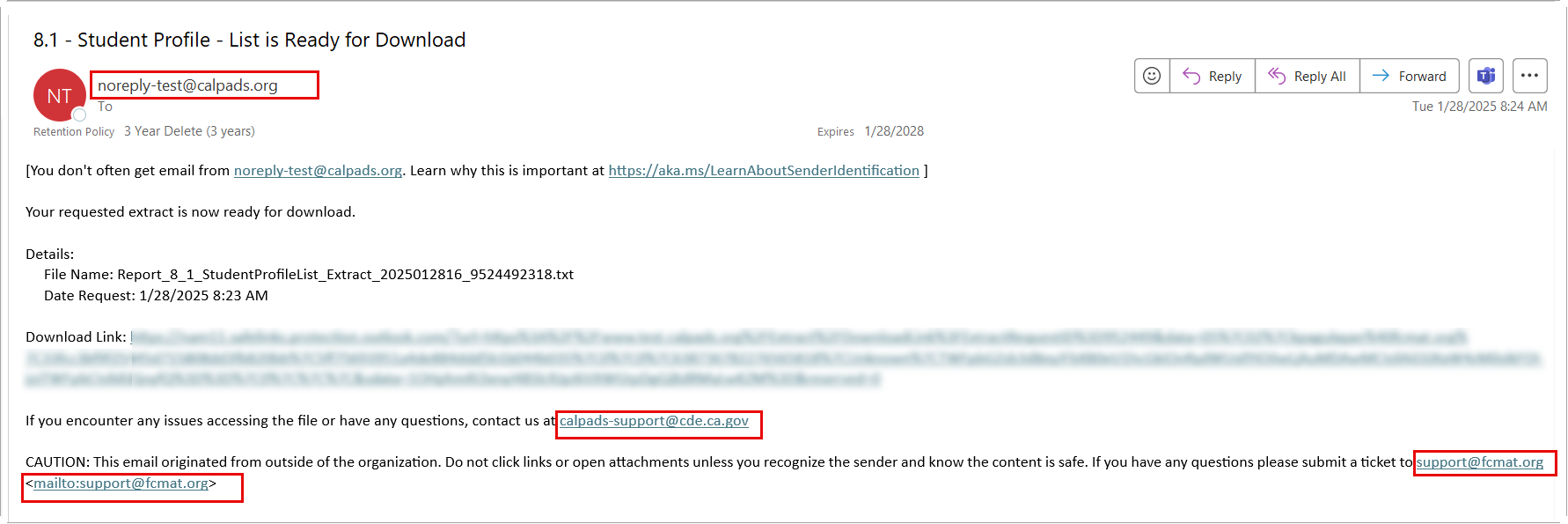
Subject Line: [Extract Type that was requested] is Ready for Download
Body Message:
Your requested extract is now ready for download.
Details:
File Name: [Default file name from system or extract name provided by user when requesting the extract]
Date Request: [Date/Time Requested in the following format: MM/DD/YYYY HR:MIN:SEC AM/PM - GMT Time Zone]
[Download Link]
Important: For security reasons and phishing avoidance, please be aware of the provided valid email addresses boxed in red.
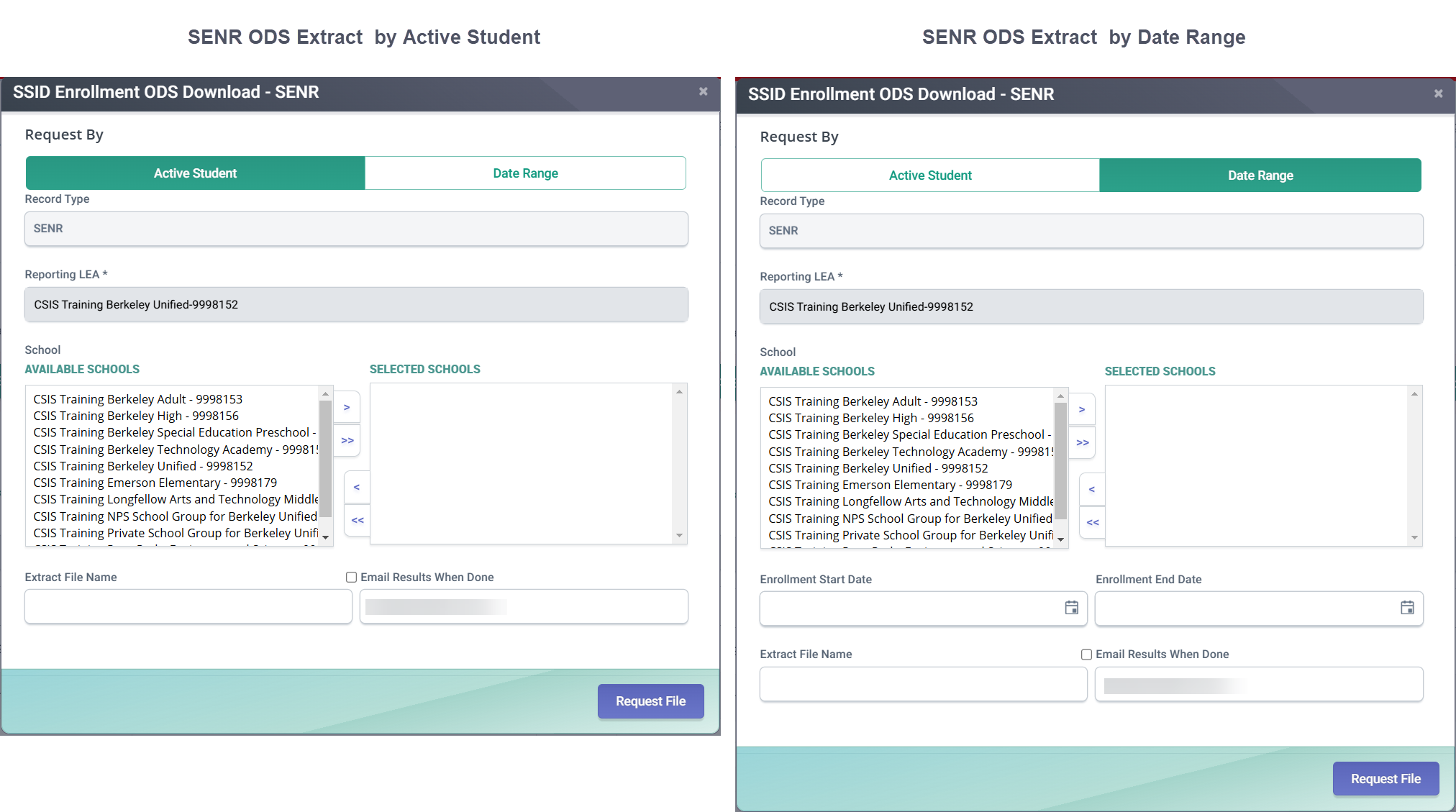
SSID RealTime Download Extract
Selection Criteria Options:
- Actively enrolled students (null Enrollment Exit Date)
- Date range based on Enrollment Start Date and Enrollment Exit Date
- Limit date range to a maximum of 5 years per extract request.
- Reporting LEA
- School
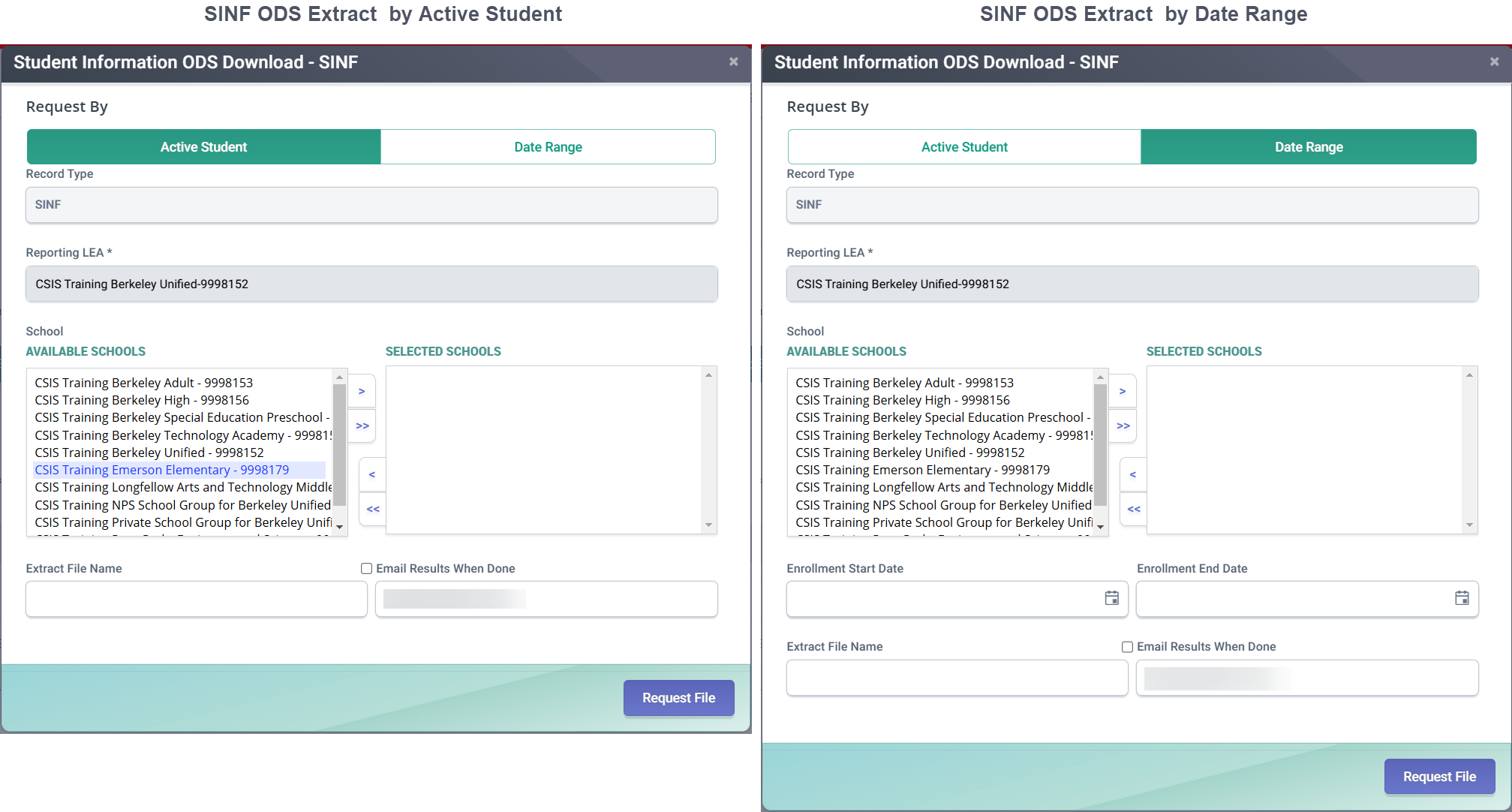
SINF RealTime Download Extracts
Selection Criteria Options:
- Actively enrolled students (null Enrollment Exit Date)
OR - Date range based on Enrollment Start Date and Enrollment Exit Date
- Limit date range to a maximum of 5 years per extract request.
- Reporting LEA
- School
- Effective Date
SELA RealTime Download Extracts
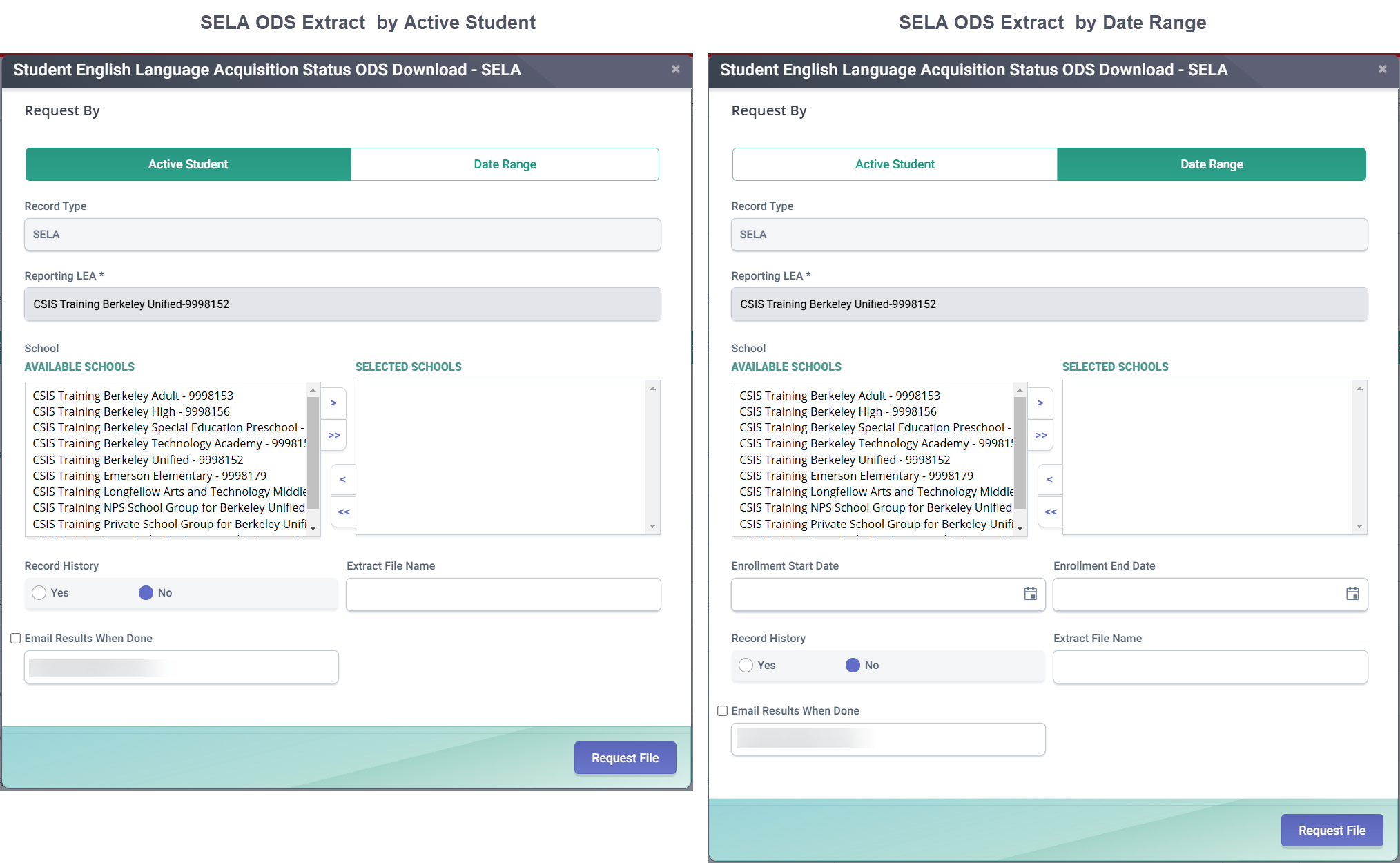
Selection Criteria Options:
Active Student:
- Actively enrolled students (null Enrollment Exit Date)
- Reporting LEA (required)
- School of Attendance (required)
- Record History (All vs Most Recent Only)*
Date Range:
- Based on Enrollment Start Date and Enrollment Exit Date (required)
- Limit date range to a maximum of 5 years per extract request.
- Reporting LEA (required)
- School of Attendance (required)
- Record History (All vs Most Recent Only)*
*Notes:
- All historical data will be blank for Local Record ID and Academic Year fields and will include complete historical data of selected enrolled students, regardless of Reporting LEA on SELA record(s).
- Most recent only SELA record is determined by sorting (descending) Effective Start Date.
SPRG RealTime Download Extracts
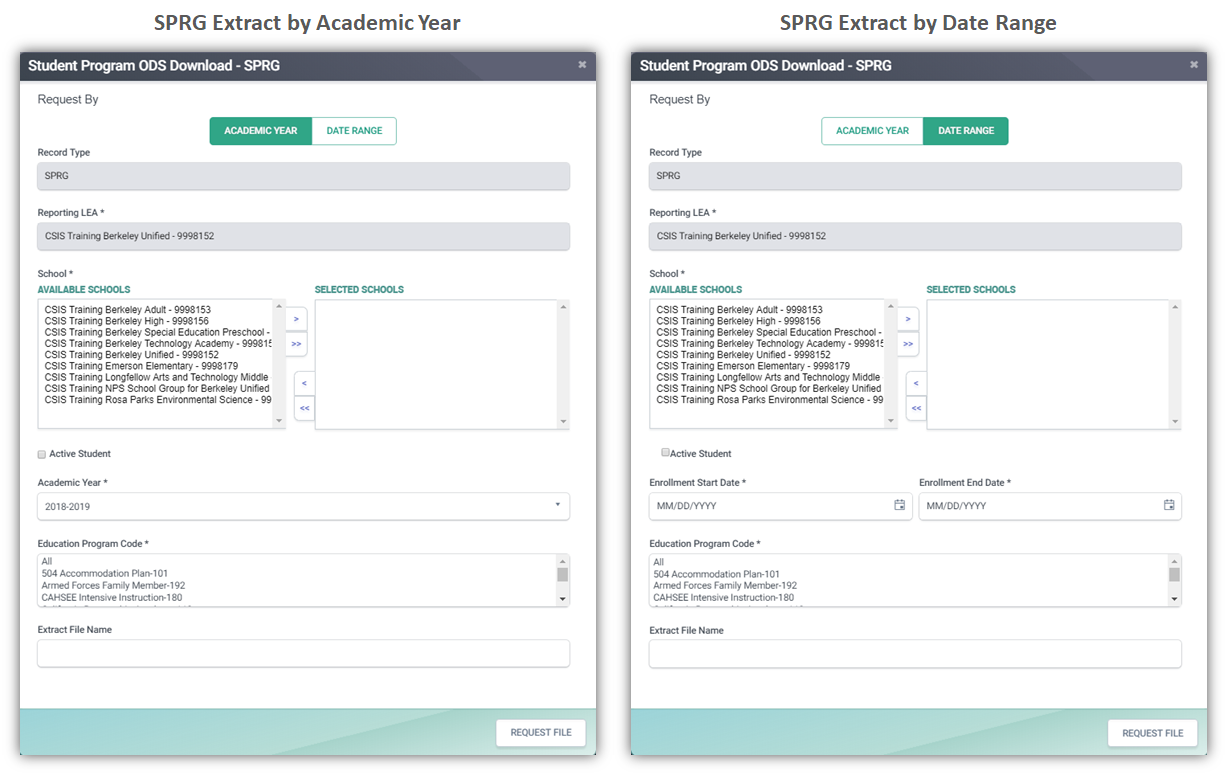
Selection Criteria Options:
- Academic Year (null date ranges)
- Actively enrolled students (null Enrollment Exit Date)
- Date range based on Student School Start Date and Student School Exit Date (null Academic Year)
- Limit date range to a maximum of 5 years per extract request.
- Reporting LEA
- School
- Education Program Code
Note
- For the AY filter — The academic year selected should limit the SPRG data that overlap with that academic year. For example, if 2023-2024 is selected, then it may include an SPRG record that has a start date of 8/20/2021 if there is a null date in the SPRG program end date.
- For the Date Range — It will select the enrollments active in the date range AND only those SPRG records with start and end dates that overlap the date range. Ultimately, the AY filter and date range should limit the enrollment and the records pulled.
SWDS RealTime Download Extracts
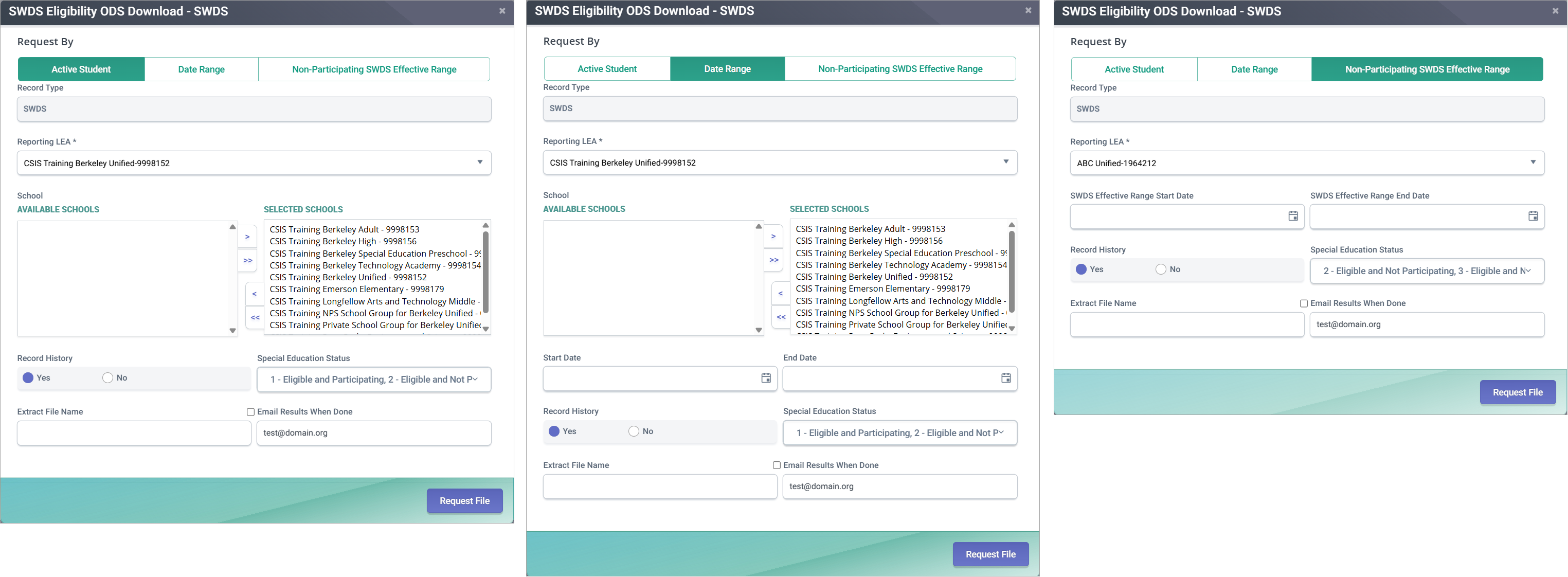
Selection Criteria Options:
Active Student:
- Actively enrolled students (null Enrollment Exit Date)
- Reporting LEA (required)
- School of Attendance (required)
- Record History (All vs Most Recent Only)
- Special Education Status (Multi-select)
Enrollment Date Range:
- Based on Enrollment Start Date and Enrollment Exit Date (required)
- Limit date range to a maximum of 5 years per extract request.
- Reporting LEA (required)
- School of Attendance (required)
- Record History (All vs Most Recent Only)
- Special Education Status (Multi-select)
Note
Extract will include complete historical data of selected enrolled students, regardless of reporting LEA on the SWDS record(s).
Non-Participating SWDS Status Effective Date Range:
- Based on SWDS Effective Start Date (required) and End Date (derived)
- Reporting LEA (required) — based on reporting LEA in SWDS record
- Record History (All vs Reporting LEA Only Submitted)
- Special Education Status (Multi-select) — NOT Eligible and Participating
Note
The Non-Participating SWDS Status Effective Date Range filter option includes the following fields: Record Type, Reporting LEA, SWDS Effective Range Start Date, SWDS Effective Range End Date, Record History, Special Education Status, Extract File Name, and Request File.
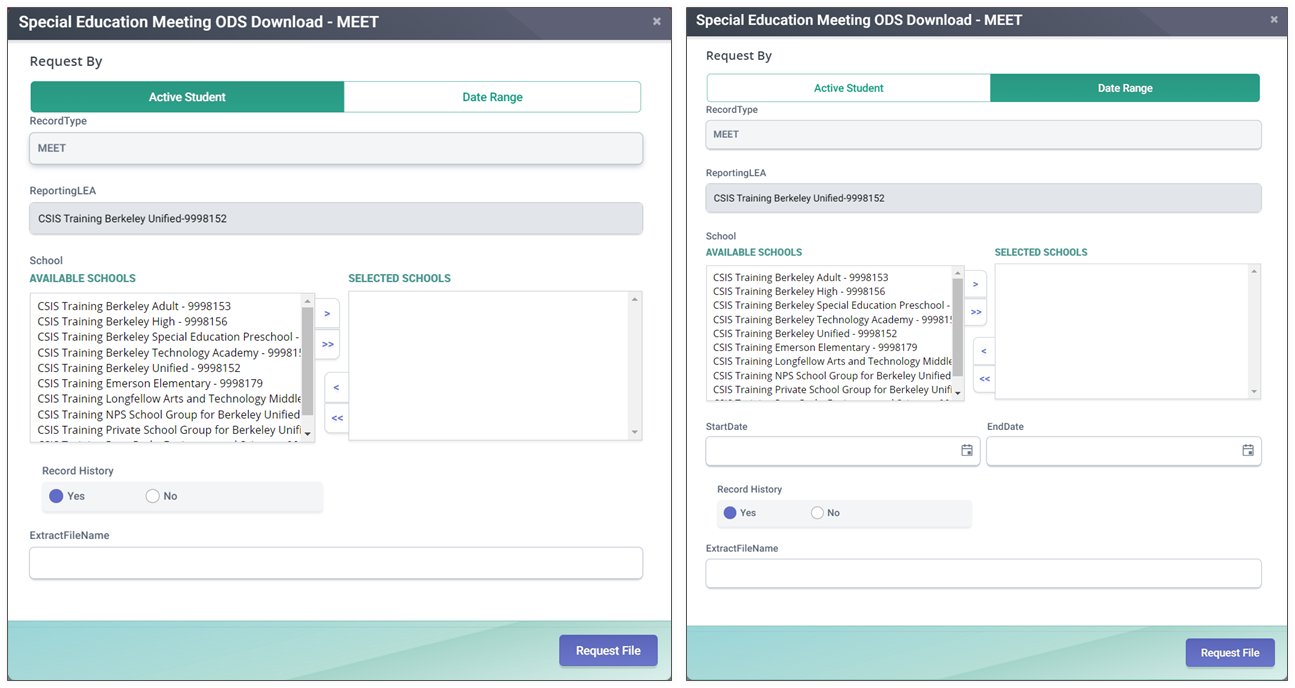
MEET RealTime Download Extracts
Selection Criteria Options:
Active Student:
- Actively enrolled students (null Enrollment Exit Date)
- Reporting LEA (required)
- School of Attendance (required)
- Record History (All vs Most Recent Only)
- Special Education Status (Multi-select)
Date Range:
- Based on Enrollment Start Date and Enrollment Exit Date (required)
- Limit date range to a maximum of 5 years per extract request.
- Reporting LEA (required)
- School of Attendance (required)
- Record History (All vs Most Recent Only)
- Special Education Status (Multi-select)
Note
Extract will pull existing records, even if the student is not currently Eligible and Participating.
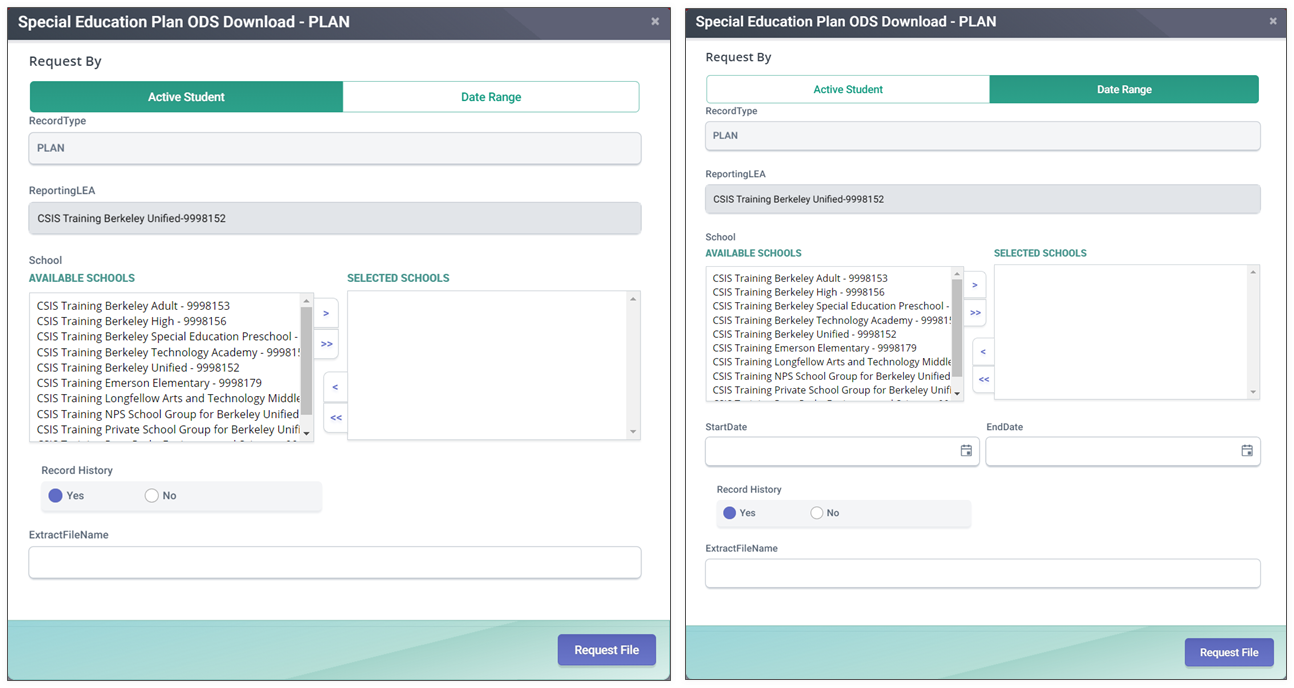
PLAN RealTime Download Extracts
Selection Criteria Options:
Active Student:
- Actively enrolled students (null Enrollment Exit Date)
- Reporting LEA (required)
- School of Attendance (required)
- Record History (All vs Most Recent Only)
- Special Education Status (Multi-select)
Date Range:
- Based on Enrollment Start Date and Enrollment Exit Date (required)
- Limit date range to a maximum of 5 years per extract request.
- Reporting LEA (required)
- School of Attendance (required)
- Record History (All vs Most Recent Only)
- Special Education Status (Multi-select)
Note
Extract will pull existing records, even if the student is not currently Eligible and Participating.
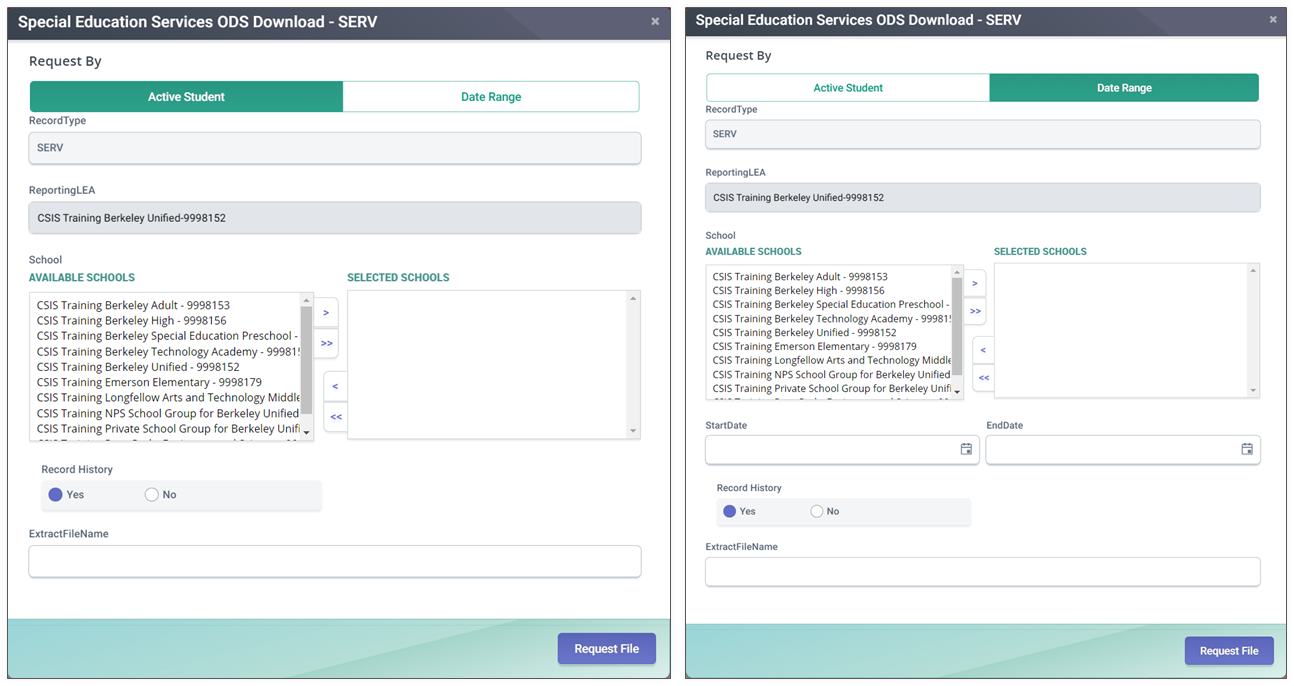
SERV RealTime Download Extracts
Selection Criteria Options:
Active Student:
- Actively enrolled students (null Enrollment Exit Date)
- Reporting LEA (required)
- School of Attendance (required)
- Record History (All vs Most Recent Only)
- Special Education Status (Multi-select)
Date Range:
- Based on Enrollment Start Date and Enrollment Exit Date (required)
- Limit date range to a maximum of 5 years per extract request.
- Reporting LEA (required)
- School of Attendance (required)
- Record History (All vs Most Recent Only)
- Special Education Status (Multi-select)
Note
Extract will pull existing records, even if the student is not currently Eligible and Participating.
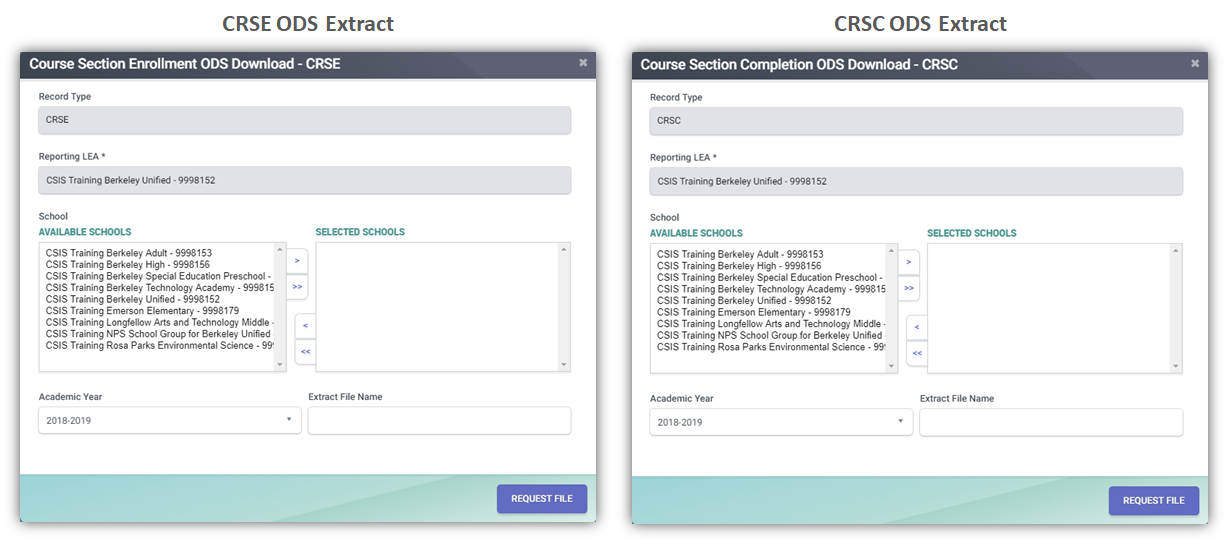
CRSE and CRSC RealTime Download Extracts
Selection Criteria Options:
- Academic Year ID
- Reporting LEA
- School of Course Delivery
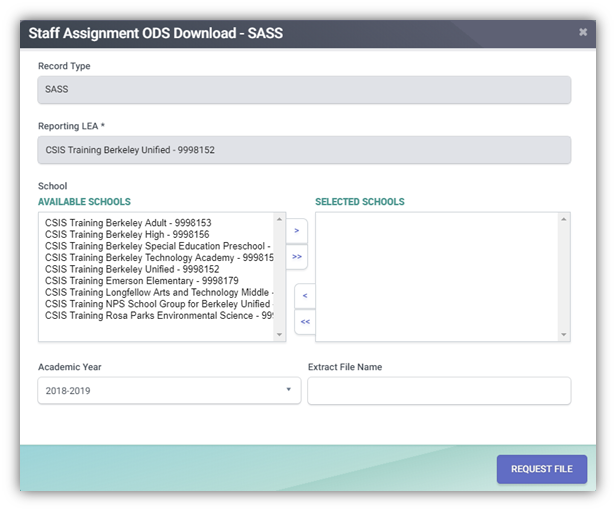
SASS RealTime Download Extract
Selection Criteria Options:
- Academic Year ID
- Reporting LEA
- School of Assignment
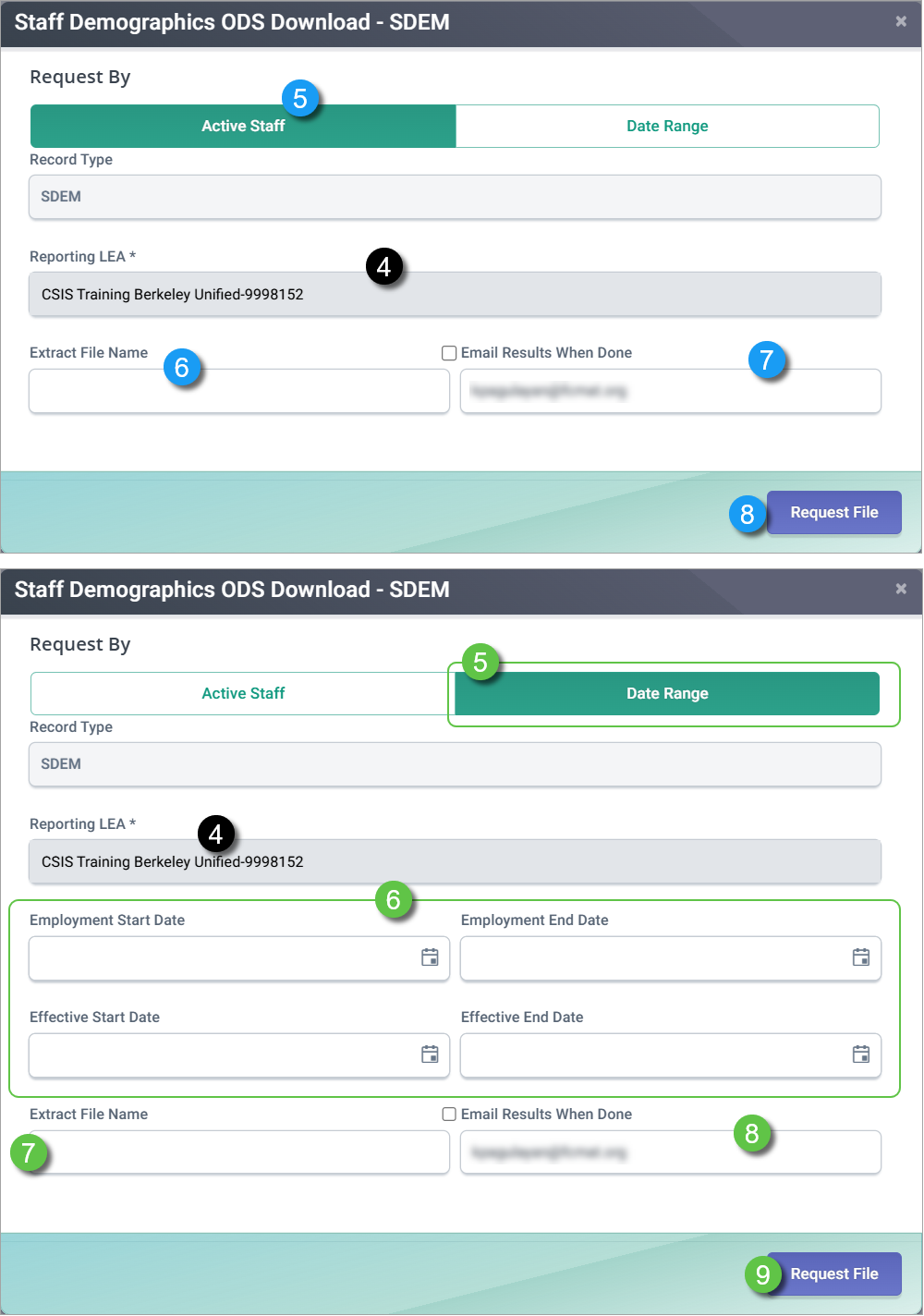
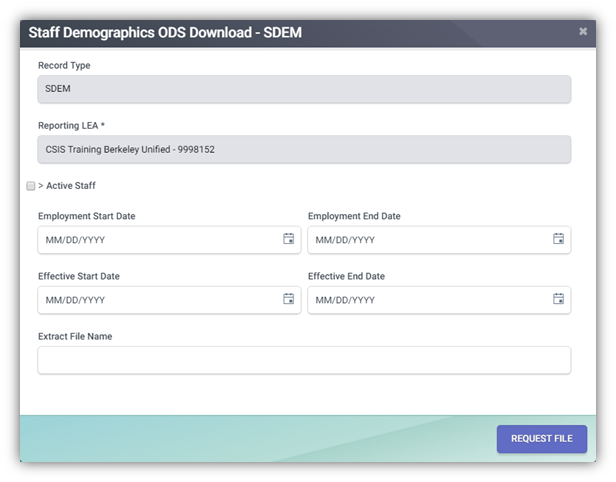
SDEM RealTime Download Extract
Selection Criteria Options:
- Active Staff (no Staff Employment End Date)
- Date Range based on Staff Employment Start Date and Staff Employment End Date
- Limit date range to a maximum of 5 years per extract request.
- Reporting LEA
- Effective Dates (Max 5 years at one time)
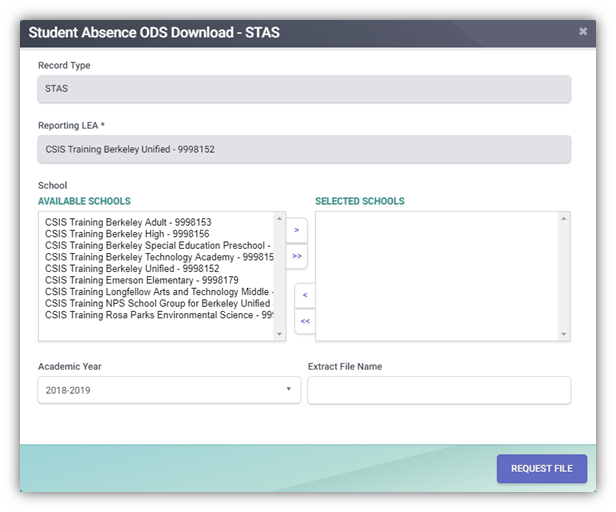
STAS RealTime Download Extract
Selection Criteria Options:
- Academic Year ID
- Reporting LEA
- School of Attendance
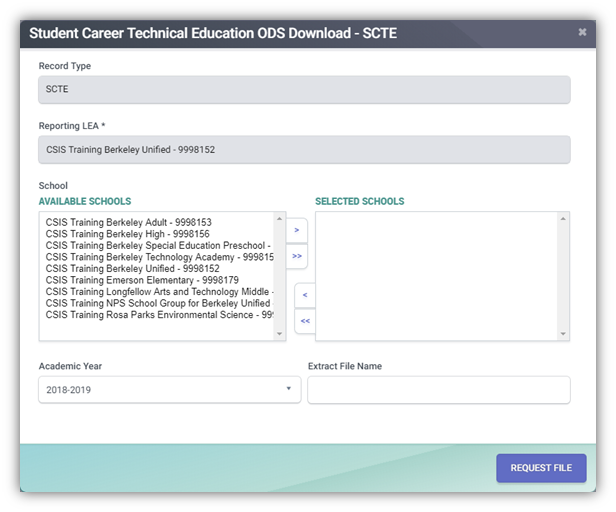
SCTE RealTime Download Extract
Selection Criteria Options:
- Academic Year ID
- Reporting LEA
- School of Course Delivery
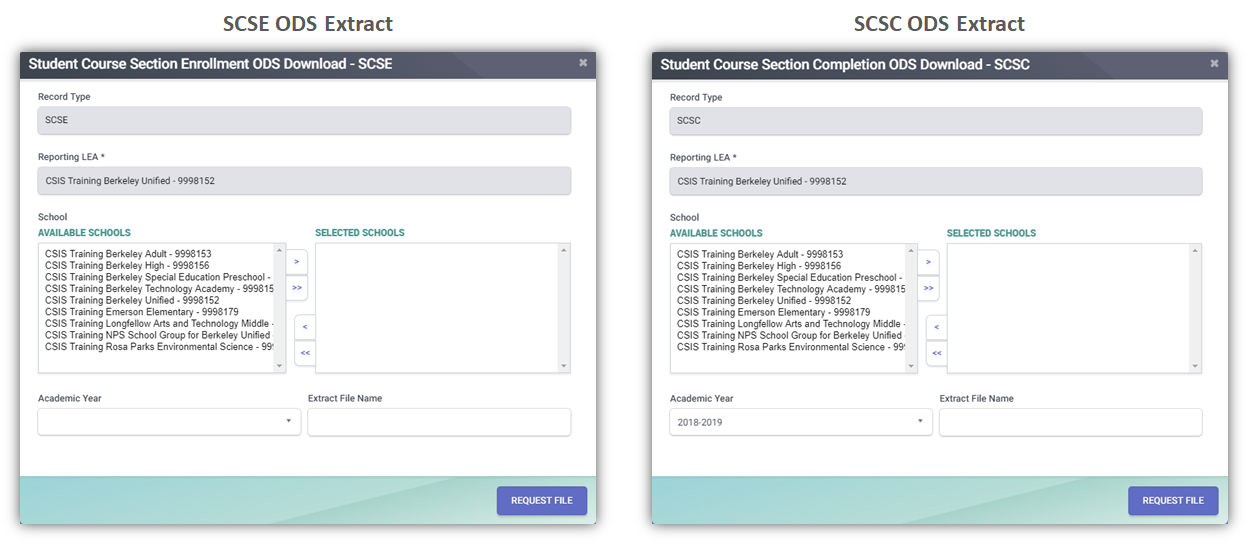
SCSE and SCSC RealTime Download Extracts
Selection Criteria Options:
- Academic Year ID
- Reporting LEA
- School of Course Delivery
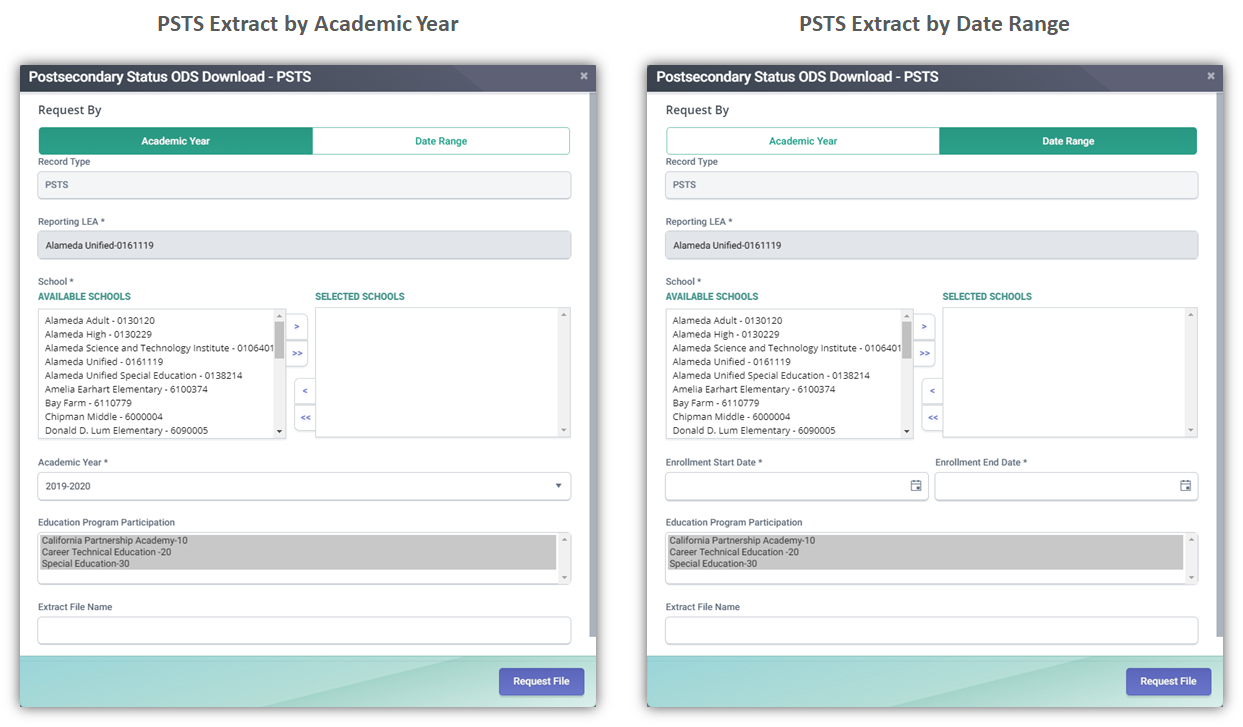
PSTS RealTime Download Extracts
Selection Criteria Options:
Academic Year:
- Reporting LEA (required)
- School of Attendance (required)
- Academic Year (required)
- Education Program Participation (not required)
Date Range:
- Reporting LEA (required)
- School of Attendance (required)
- Enrollment Start Date and Enrollment Exit Date (required)
- Limit date range to a maximum of 5 years per extract request.
- Education Program Participation (not required)
Security:
- SELPA: LEA selection available (multi-select). Access limited to Education Program Participation 30 (Special Education)
- LEA: School selection available (multi-select)
- School: Defaults to assigned LEA and School
- State: LEA (single-select) and School (multi-select) options available
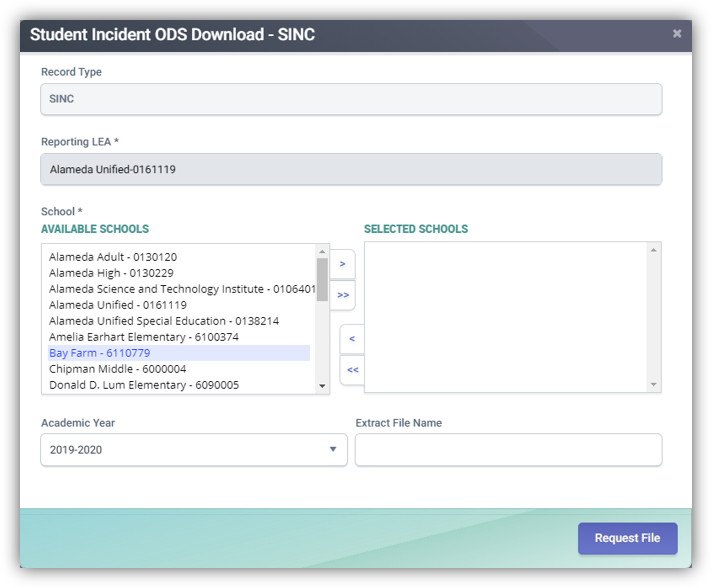
SINC RealTime Download Extracts
Selection Criteria Options:
- Academic Year ID
- Reporting LEA
- School of Attendance
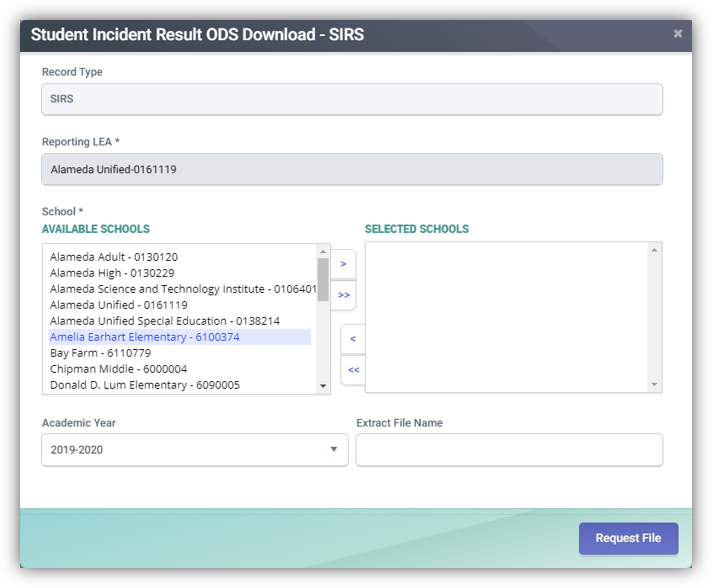
SIRS RealTime Download Extracts
Selection Criteria Options:
- Academic Year ID
- Reporting LEA
- School of Attendance
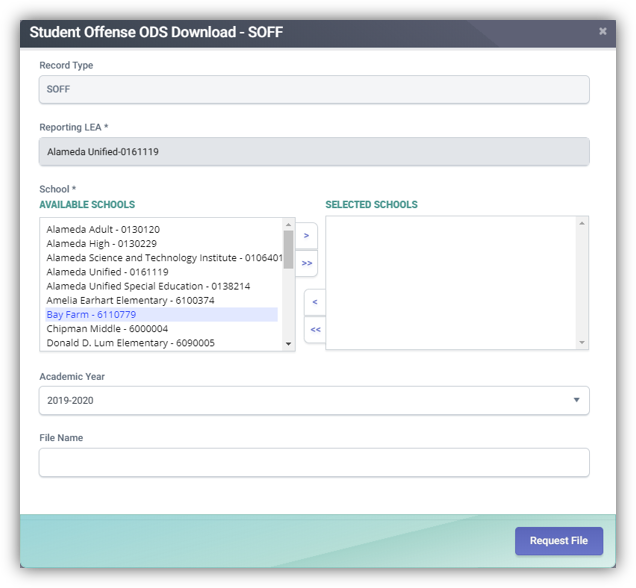
SOFF RealTime Download Extracts
Selection Criteria Options:
- Academic Year ID
- Reporting LEA
- School of Attendance
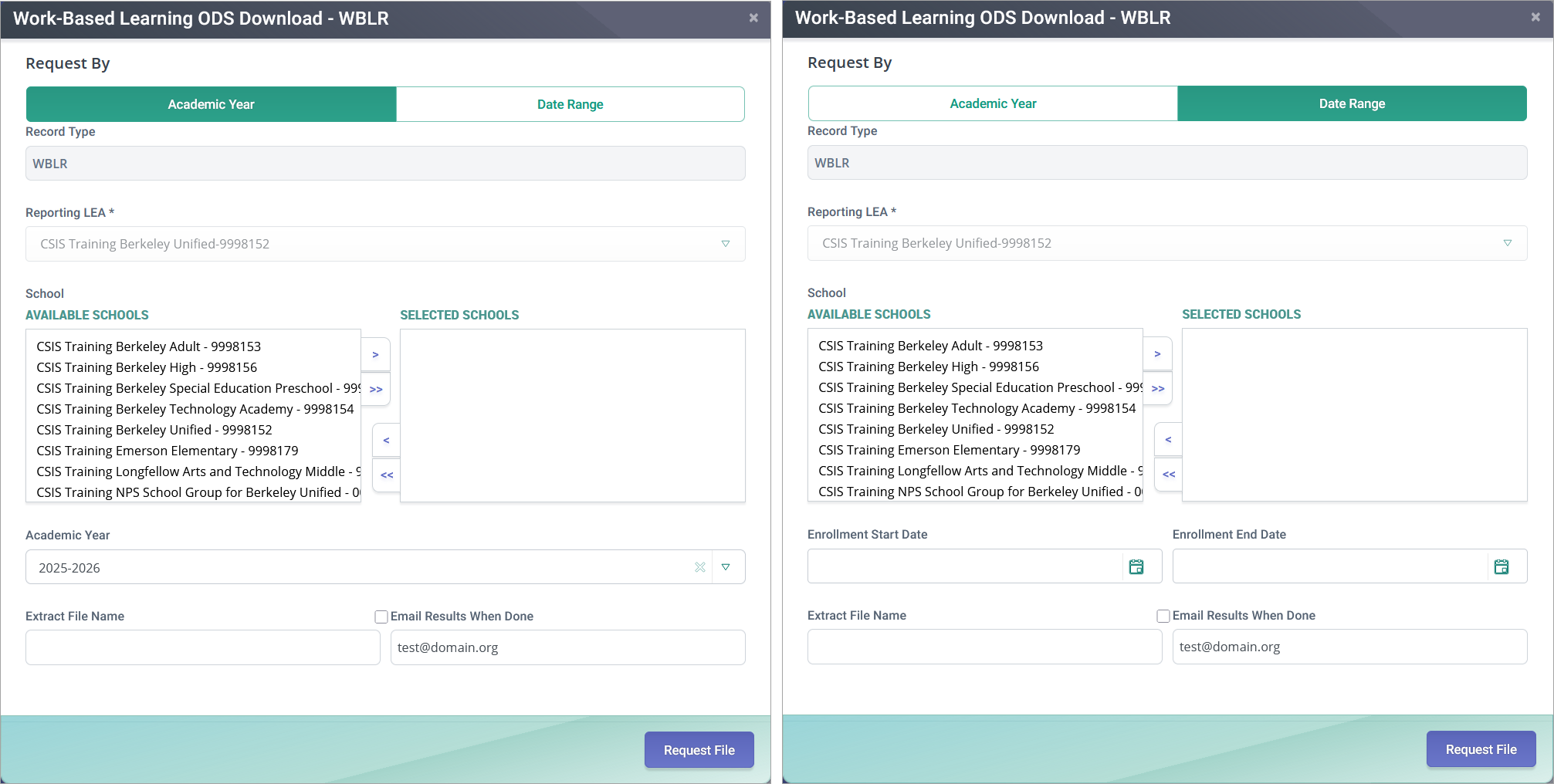
WBLR RealTime Download Extracts
Selection Criteria Options:
For LEA and School Users:
Academic Year:
- Reporting LEA (required)
- School of Attendance (required)
- Academic Year (required)
Date Range:
- Reporting LEA (required)
- School of Attendance (required)
- Enrollment Start Date and Enrollment Exit Date (required)
- Limit date range to a maximum of 5 years per extract request.
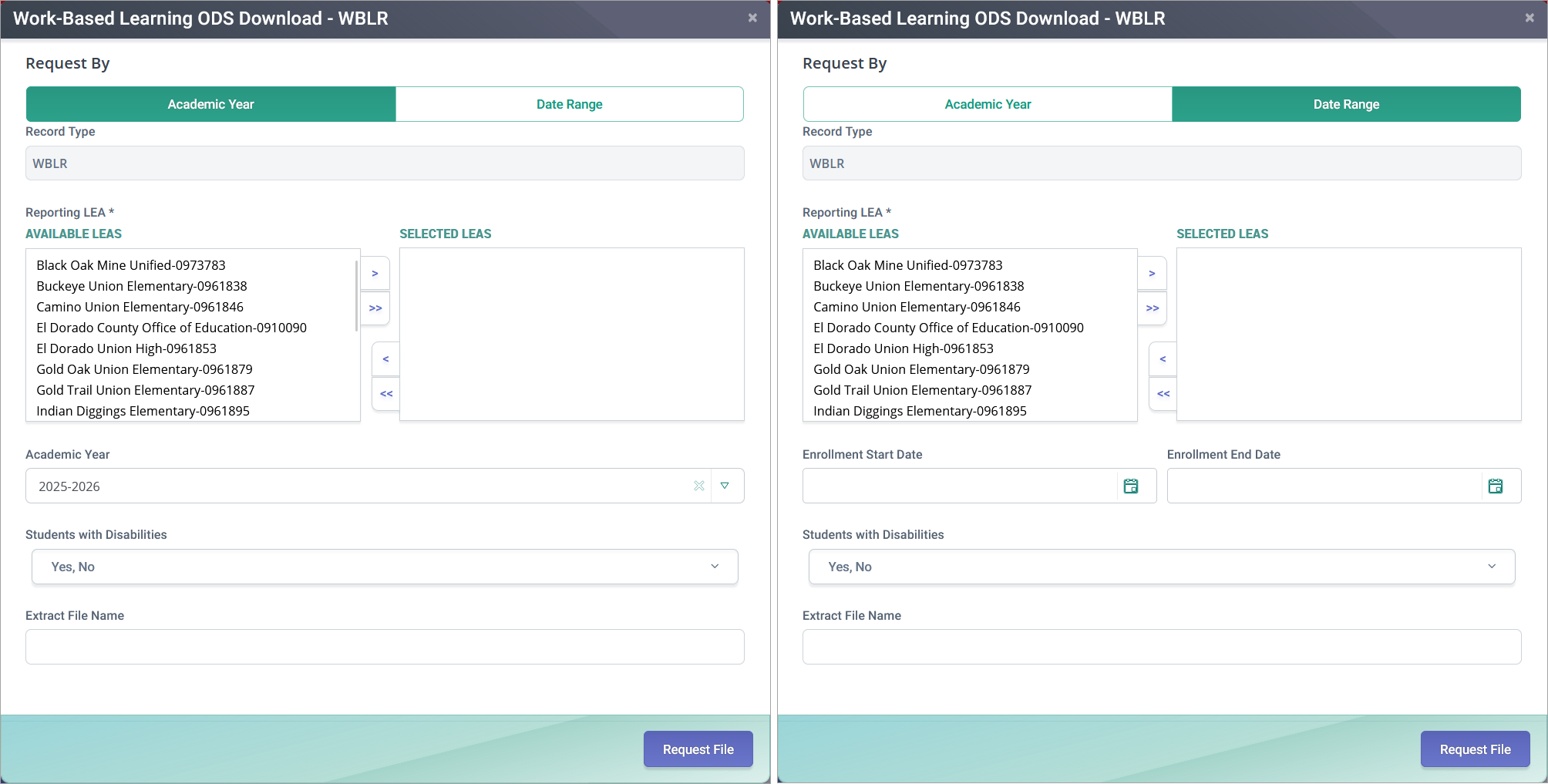
For SELPA Users:
Academic Year:
- Reporting LEA (required)
- Academic Year (required)
- Students with Disabilities (filter flag, not required)
Date Range:
- Reporting LEA (required)
- Enrollment Start Date and Enrollment Exit Date (required)
- Limit date range to a maximum of 5 years per extract request.
- Students with Disabilities (filter flag, not required)
Security:
- SELPA: LEA selection available (multi-select)
- LEA: School selection available (multi-select)
- School: Defaults to assigned LEA and School
- State: LEA (single-select) and School (multi-select) options available
LEAP RealTime Download Extract
Selection Criteria Options:
- Academic Year ID
- Reporting LEA
