Anomalies Management Overview
This outlines the business rules and processes governing Anomaly Management, including the user interfaces used to manage this functionality.
All public California K–12 local educational agencies (LEAs), including charter schools, must obtain a Statewide Student Identifier (SSID) from the California Longitudinal Pupil Achievement Data System (CALPADS) for each student. Below are the core rules in creating and maintaining SSIDs and the enrollment records use to gain ownership.
- A student should only have one SSID and should be unique to that student.
- Two or more students should not share the same SSID.
- LEAs must not have overlapping ownership of the same SSID due to a concurrent enrollment record.
- A SSID's enrollment record must have a valid exit reason code appropriate to circumstance of the student exit.
Anomalies at a Glance
| Anomaly | What it indicates | Primary trigger | Typical resolution |
|---|---|---|---|
| ERD – Exit Reason Discrepancy | Exit reason/completion status inconsistent with subsequent enrollment behavior | Enrollment/exit changes within reporting period | Correct exit reason/completion status and/or enrollment records |
| CCE – Concurrent Enrollment | Overlapping primary enrollments (or primary + short-term overlap above threshold) across LEAs/schools | Posting/updating overlapping enrollments | Adjust enroll/exit dates; coordinate sending/receiving LEAs; submit missing exit dates. |
| MID – Multiple Identifier | Potential duplicate SSIDs for the same student based on matching demographics | Student info/enrollment updates that create or modify demographic matches | Combine SSIDs (merge/retire) or mark as known non-anomaly (different individuals) |
CALPADS keeps SSID Anomaly status up to date in real time. It runs a process that counts the number of MIDs, CCEs, and ERDs for each LEA as of the processing date, using the CALPADS Reporting Calendar for the upcoming Data Submission to determine which enrollment records to evaluate.
The Report From and Through Dates (the "Report Period") set which data gets reviewed. For the Fall and End of Year submissions, these dates currently span the entire Academic Year — so LEAs can focus on anomalies for the next submission while still covering all enrollments from the whole year.
Anomaly processing looks at any SSID with an open enrollment at some point during the Report Period. This includes enrollments that were still open on the Report Date, as well as any records an LEA needed to track during that time (such as exits for dropouts or completers). Each of these counts toward the "Report Period Enrollment" total, which gives LEAs with higher student turnover a fairer "Anomaly % of Enrollment" calculation.
Anomaly Contact
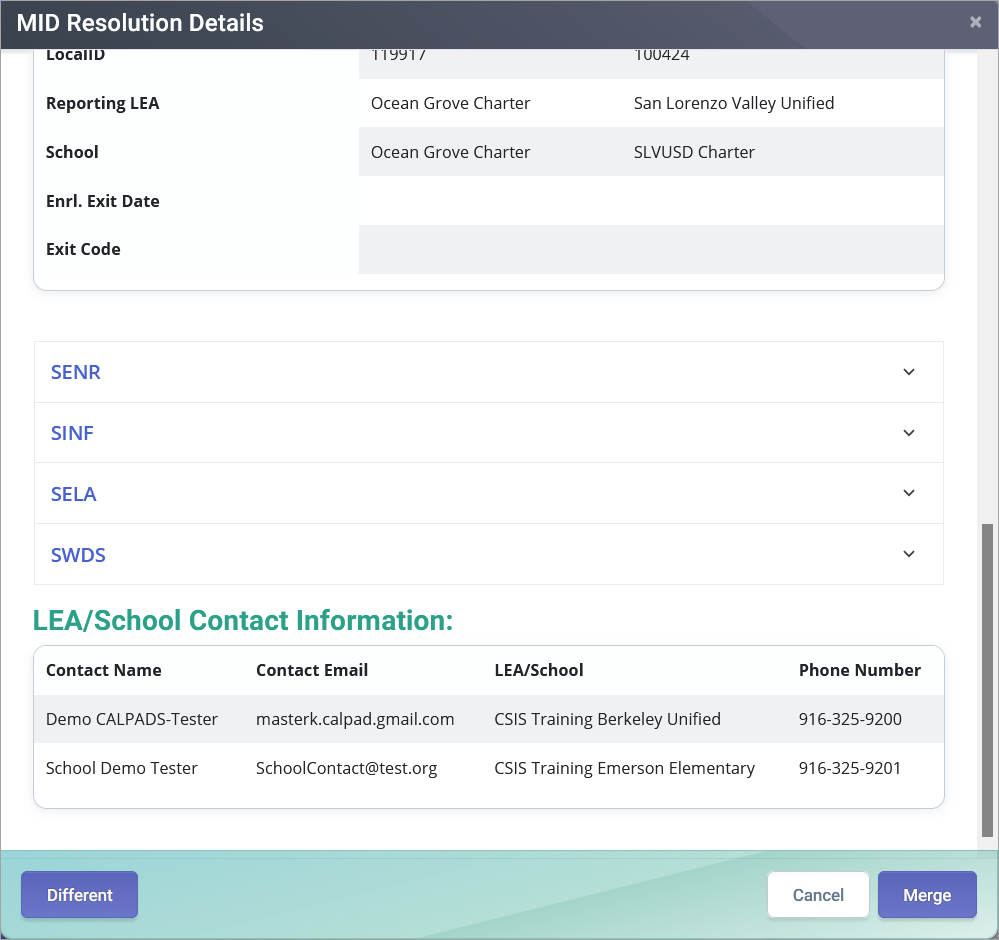
LEAs are expected to have a designated anomaly contact/s that other LEAs can contact to fix anomalies. Currently, the system will assign the CALPADS LEA Administrator contact as the default for the anomaly contact if the LEA has failed to designate one. Anomaly contact roles can be assigned at the school and district levels. If there is more than one anomaly contact for an LEA, all contacts will show on the screen (if the user clicks on "School Contact" from the anomaly screens).
Assigning Anomaly Contacts
Only the CALPADS LEA Administrator can update the anomaly contact.
To add the Anomaly Contact role to a user:
Step 1: Access the User Management interface by going to the Navigation window and clicking on Admin and User Management.
Step 2 and 3: Fill out the fields with the approriate information and the click on Search.
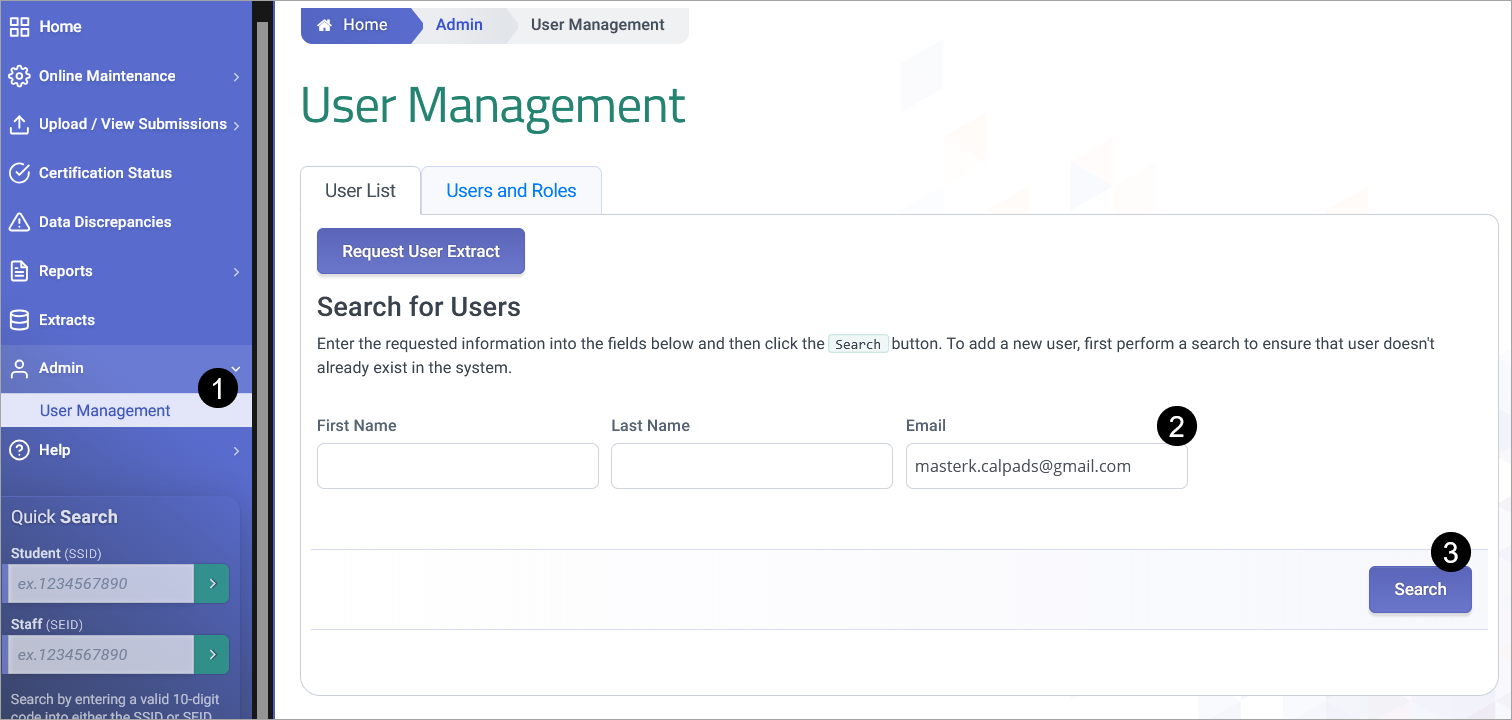
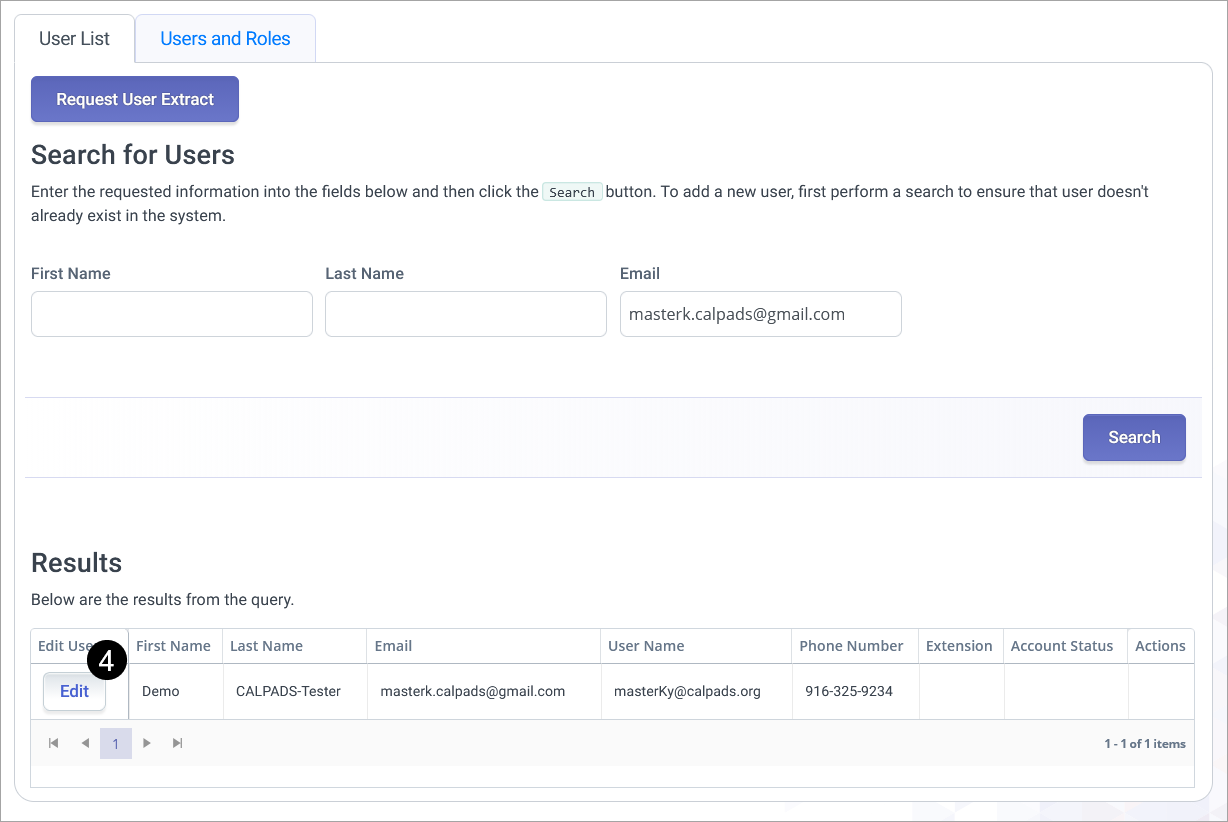
Step 4. Select the username the anomaly contact role needs to eb assigned to by clicking on the Edit button.
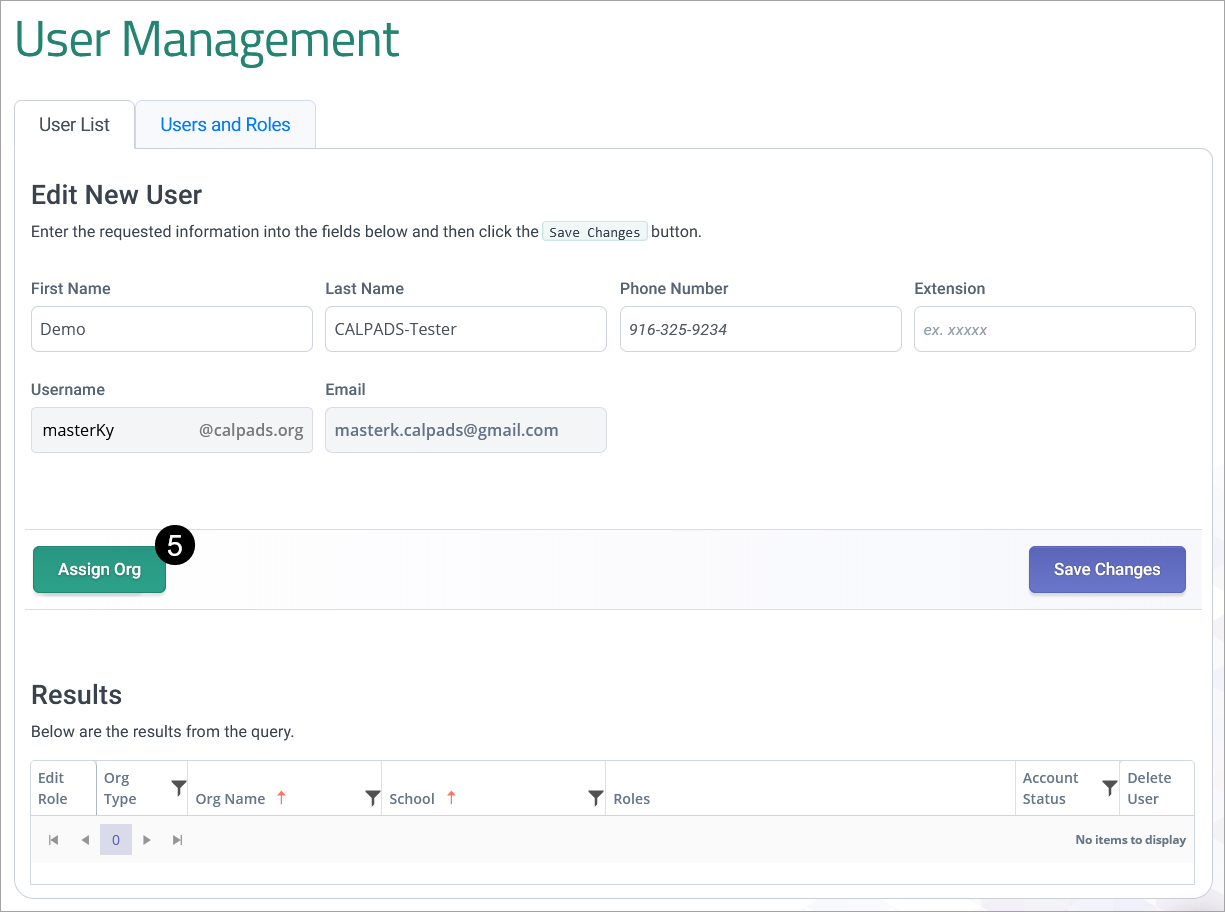
Step 5: Click on the Assign Org button if the user account has not been assigned to any organizations yes (LEA nor school). Otherwise, select the organization listed under the Results section by clicking onthe Edit button.
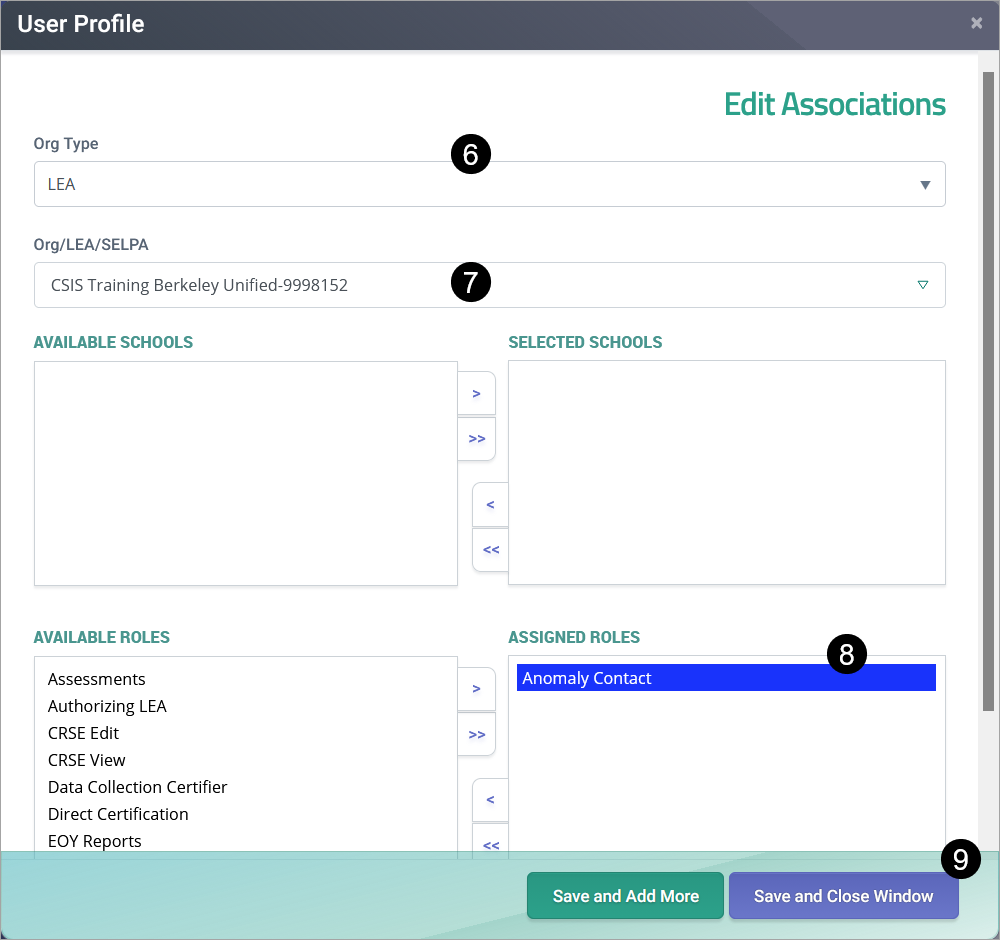
Step 6: The User Profile module will appear. If assigining the account to an organiztion for the first time, and Org type must be selected to indicate whether a LEA level or school access is given.
Step 7: Depending on the Org type preferrence, a specific Organization must also be selected from the dropdown. If school is selected in Org Type, the schools section will be populated by the list of schools associated to the LEA. Select one or more schools to proceed.
Step 8: Locate and select the Anomaly contact role under the roles section.
Step 9: Click on the desire action button to save the settings.
Step 10. The contact should now be listed in the CCE and MID record modules.
Note: To remove the role, follow the same user search process and then remove the Anomaly Contact role.
CSIS CALPADS LEA Contacts
The California School Information Services (CSIS) also keeps you connected to a statewide community of California Longitudinal Pupil Achievement Data System (CALPADS) contacts who help each other to resolve statewide student identifier (SSID) anomalies. The LEA Contact Lookup Tool maintains a database of designated LEA contacts. More often than not, these are the same designated anomaly contacts listed in the anomaly modules.
Best Practices
- You may assign multiple users as anomaly contacts, so the work of is spread out.
- Inversely, you can also just assign one anomaly contact.
- Reach out to CSIS support to establish who should also be listed in the CSIS LEA Lookup tool.
- Make sure a phone number and extension is included.