Staff Assignment (SASS)
(Updated 9/8/2026)
The “Assignment” page allows an authorized user to add a new assignment for a staff member or update a staff member’s assignment record after viewing the existing information. The user may also delete a Staff Assignment record through this page. This page displays when the user expands the Assignment container in the Staff Details page.
Account Roles Needed
Users need the following roles to access this section of the Staff Details page.
- Staff Search
- SASS Edit
- SASS View
Users may have the ability to edit records that are owned by the LEA, if assigned by the LEA Administrator which allows you to edit the Assignment records. An authorized user may perform the following functions through this interface:
- View one or more existing Assignment records for staff member
- If authorized, edit an existing Assignment record
- If authorized, add a new Assignment record for a staff member
- Return to the “Staff Details” page
How to get to SASS User Interface
Please see Staff Search page.
Assignments Container
The Assignments container page displays when the user searches a Staff SEID or select the staff member's name from the results generated from the Staff search section. The container expands when clicked on. The system will display the specified CALPADS’ key elements from each existing record for the staff member.
The Assignments container UI is depicted below followed by the screen elements table and the “Staff Assignment Details” UI depiction followed by the screen elements table.
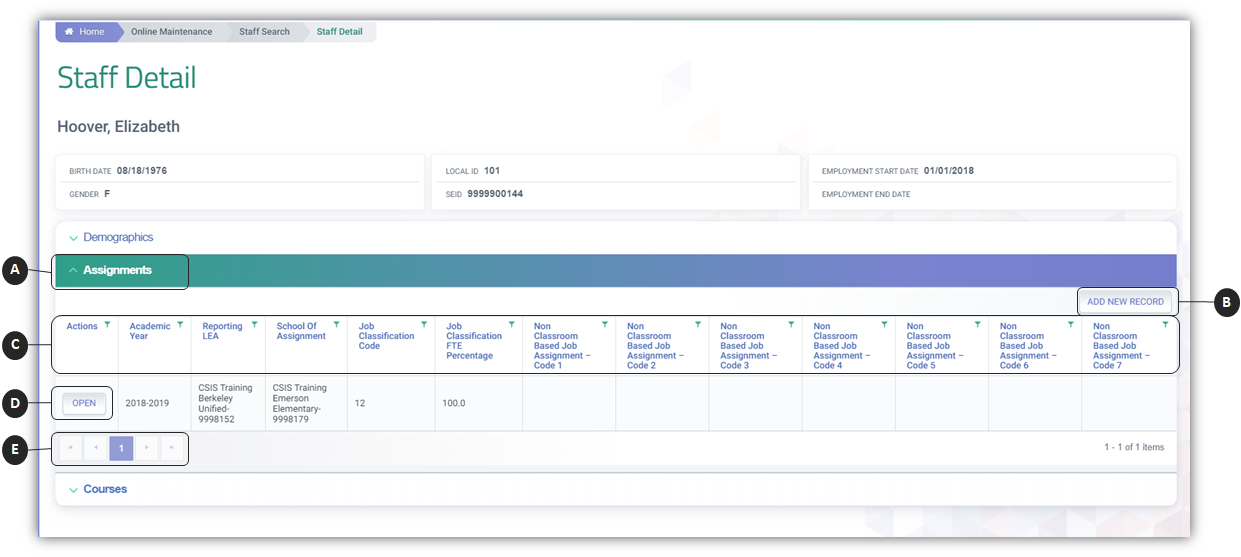
 Clicking on the Assignments header expands the container and reveals existing records.
 Add New Record button enables user to create a new Staff Assignment record.
 Container column headers enable users to sort or filter existing records based on parameters set.
 Open button enable users to view details of the record. If the LEA owns the record and the user has Edit Roles, the record details can be modified.
 Since the container only shows limited records at a time, the page buttons allow users to move to the next set of records.
Staff Assignment Details
The “Staff Assignment Detail” modal allows an authorized user to update a selected staff member’s assignment information that belongs to the user’s LEA after viewing the existing information. The user may also delete the record once the assignment information has been viewed. This page displays when the user selects the Open or Add New Record buttons from the Assignments container.
The “Assignment Details” UI depiction followed by its screen elements table.
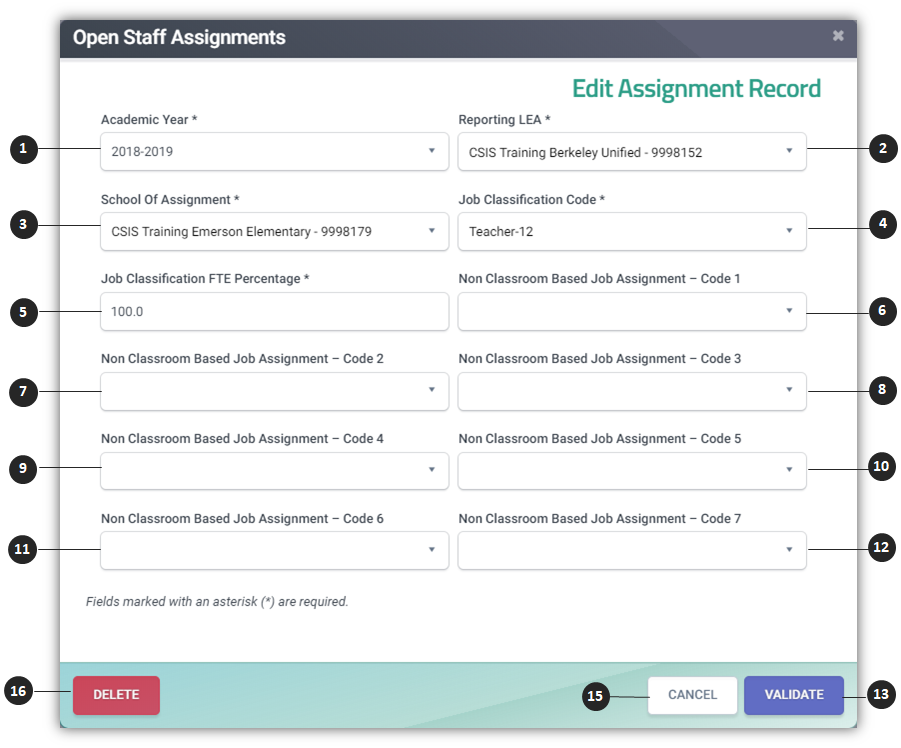
Staff Assignment Details Table
| # | Screen Label | Required | Validation / Business Rule |
|---|---|---|---|
| 1 | Academic Year | Y | Indicates the school year associated with the file. |
| 2 | Reporting LEA | Y | 1. Must equal the institution identifier of the submitter's User ID. 2. To use Superintendent-level assignment codes 0100 – Superintendent or 0102 – Deputy or Associate Superintendent, a staff person must be associated with the district or county office. |
| 3 | School of Assignment | Y | 1. Must be a valid CDS code and have an active CALPADS reporting relationship with the Reporting LEA. 2. School of Assignment must not be an NPS school. 3. Only one Staff Assignment (SASS) record may exist with the same Academic Year ID, SEID, School of Assignment, and Job Classification Code. 4. To use Superintendent-level assignment codes 0100 – Superintendent or 0102 – Deputy or Associate Superintendent, a staff person must be associated with the district or county office. |
| 4 | Job Classification Code | Y | 1. Staff Job Classification Code and Non-Classroom Based Job Assignment Code must be a valid combination as defined in the CALPADS Valid Code Combinations document. 2. Only one Staff Assignment (SASS) record may exist with the same Academic Year ID, SEID, School of Assignment, and Job Classification Code. |
| 5 | Job Classification FTE Percentage | Y | The sum of all FTE percentages by Job Classification for each staff member cannot exceed 200%. The sum of all FTE percentages by Job Classification should be greater than or equal to 5%. |
| 6 | Non-Classroom Based Job Assignment – Code 1 | Required if Staff Job Classification Code = 10 (Admin), 11 (Pupil Services) or 14 (Teacher, Non-Instructional) Expected If Staff Job Classification Code = 13 (Teacher, Instructional Assignments) and staff is TOR and on leave |
1. If Staff Job Classification Code = 10, 11 or 14 , one or more Non-Classroom Based Job Assignment Codes must be populated. 2. Staff Job Classification Code and Non-Classroom Based Job Assignment Code must be a valid combination as defined in the CALPADS Valid Code Combinations document. 3. If any Non-Classroom Based or Support Assignment is 6018 – Employee on Leave, all other Non-Classroom Based or Support Assignment fields must be blank. 4. To use Superintendent-level assignment codes 0100 – Superintendent or 0102 – Deputy or Associate Superintendent, a staff person must be associated with the district or county office. |
| 7 | Non-Classroom Based Job Assignment – Code 2 | N – Optional for Admin or Pupil Services staff with multiple non-classroom-based job assignments. | Drop-down values will be populated based on the selected Job Classification Code. |
| 8 | Non-Classroom Based Job Assignment – Code 3 | N – Optional for Admin or Pupil Services staff with multiple non-classroom-based job assignments. | Drop-down values will be populated based on the selected Job Classification Code. |
| 9 | Non-Classroom Based Job Assignment – Code 4 | N – Optional for Admin or Pupil Services staff with multiple non-classroom-based job assignments. | Drop-down values will be populated based on the selected Job Classification Code. |
| 10 | Non-Classroom Based Job Assignment – Code 5 | N – Optional for Admin or Pupil Services staff with multiple non-classroom-based job assignments. | Drop-down values will be populated based on the selected Job Classification Code. |
| 11 | Non-Classroom Based Job Assignment – Code 6 | N – Optional for Admin or Pupil Services staff with multiple non-classroom-based job assignments. | Drop-down values will be populated based on the selected Job Classification Code. |
| 12 | Non-Classroom Based Job Assignment – Code 7 | N – Optional for Admin or Pupil Services staff with multiple non-classroom-based job assignments. | Drop-down values will be populated based on the selected Job Classification Code. |
| 13 | Validate | N/A | Validation is a two-stage process: Stage 1: Performs client-side validation for missing required data and data type errors. Stage 2: Performs validation checks on Staff Assignment IVRs. If no fatal IVR errors are detected but warning IVRs are triggered, the system displays “Validation Successful and warnings exist”, followed by a list of warning IVRs. If no fatal IVR errors are detected, the Post and Cancel buttons are presented. |
| 14 | Post | N/A | If no fatal validation errors exist, this option is presented. When selected, the system posts the records. If posting fails, the system displays “Post failed” along with applicable error messages. |
| 15 | Cancel | N/A | Appears after validation. If selected, the system returns the fields to an editable state while retaining any data values changed from the original record. |
| 16 | Delete Record | N/A | When selected, the system displays a confirmation message on the Edit page. Based on the user's selection, the record is either removed from the ODS or the deletion process is canceled. |
SASS Data Population Training
Additional Resources
SASS Data PopulationVideo
SASS Data Population Self-paced video
CALPADS File SpecificationsForm
Look for Staff Assignment Tab
CALPADS Data Guide
Chapter 2.2.2 provides additional information on Job classifications.
CALPADS Valid Code Combinations
Please refer to the following tabs:
- NonClassSuppAsgn - JobClass
- NonClassSuppAsgn - Content Area