Local Educational Agency Program (LEAP)
The Local Educational Agency Program (LEAP) is a new CALPADS data collection introduced to support Assembly Bill 1113 and capture student participation in Expanded Learning Programs (ELPs), including ELO-P, CCLC, ASSETS, and ASES, beginning in the 2025–26 school year. Unlike traditional school-based reporting through the SPRG file, the LEAP file collects student-level data at the LEA level to account for programs that operate outside of a student’s enrolled school or standard academic calendar. The file includes standard student identifiers along with a program code (194 – Expanded Learning Programs) and a measure of participation through reported program days, enabling the California Department of Education to better assess statewide access, enrollment, and engagement in expanded learning opportunities.
LEA Program Essentials
LEAP
- Student Search (To search student and access student detail page)
- LEAP View
- LEAP Edit
EOY 1
Replacement Processing (See impacted Operational Key Fields)
- School of Attendance
- SSID
- Education Program Code
- Education Program Membership Start Date
- Education Service Academic Year
- Education Service Code
- Reporting LEA
- Academic Year ID
- LEA Education Program Code
N/A. This is a LEA-level file submission
TK-12 only
LEA Program Details
The LEA Programs (LEAP) container appears on the Student Details page. The page opens with the LEAP container in the collapsed position. Clicking the down arrow on the containers displays the individual program records for the selected student. The system will display all LEA Program records by default, but only will allow editing of Program records belonging to the user’s LEA. The selected student’s historical records will be displayed in reverse chronological order. NOTE: If a user is not authorized to add, edit, or view confidential data types, some student program records will not be displayed.
Users may have the ability to edit LEAP records that are owned by the LEA, if the role is assigned by your LEA Administrator. An authorized user may perform the following functions through this interface:
- View one or all of a student’s LEAP records belonging to the user’s or another’s LEA (depending on the user permissions)
- If the user is authorized, an Open button will display next to an existing LEAP record
- If the user is authorized, an Add a New Record button will display above the LEAP record(s)
- Modify the sequence of the displayed Program records
Navigating to the LEAP User Interface
A user first searches the student either through the SSID or demographic search process to get to the Student Details page. By default, the LEA Program container will be in the collapsed position. Clicking the container header displays the individual program records for the selected student.

LEA Program Container
The LEA Program container UI is depicted below followed by its screen elements table. Below that is the LEA Program” modal depiction followed by its screen elements table. Following the screen elements tables are the user interaction section and the system operations section with the available system functions, requirements and possible processes that may occur through these interfaces.
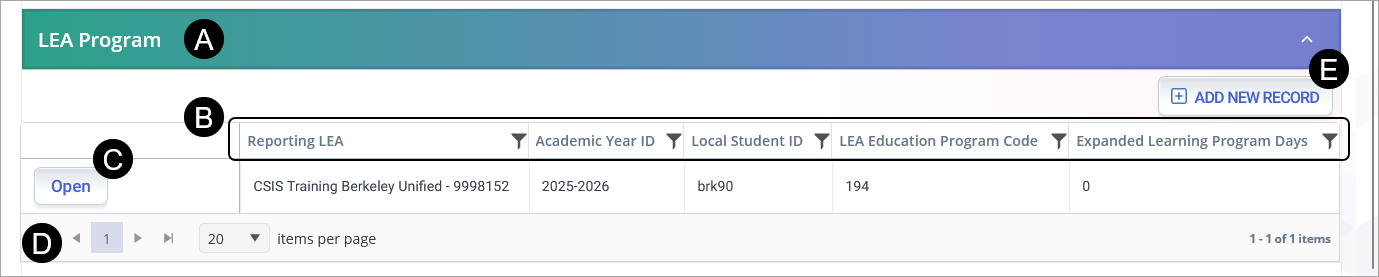
Clicking on the LEA Program header expands the container and reveals existing records.
Container column headers enable users to sort or filter existing incident records based on parameters set. Open button enable users to view details of the LEA Program record. Record can only be modified if the record is owned by the LEA the user is associated to and the user has LEA-level security. Since the container only shows limited records at a time, the page buttons allow users to move to the next set of records. If a user is authorized to add and edit records, the user will be able to click on Add a New Record button and add a record.LEA Program Modal
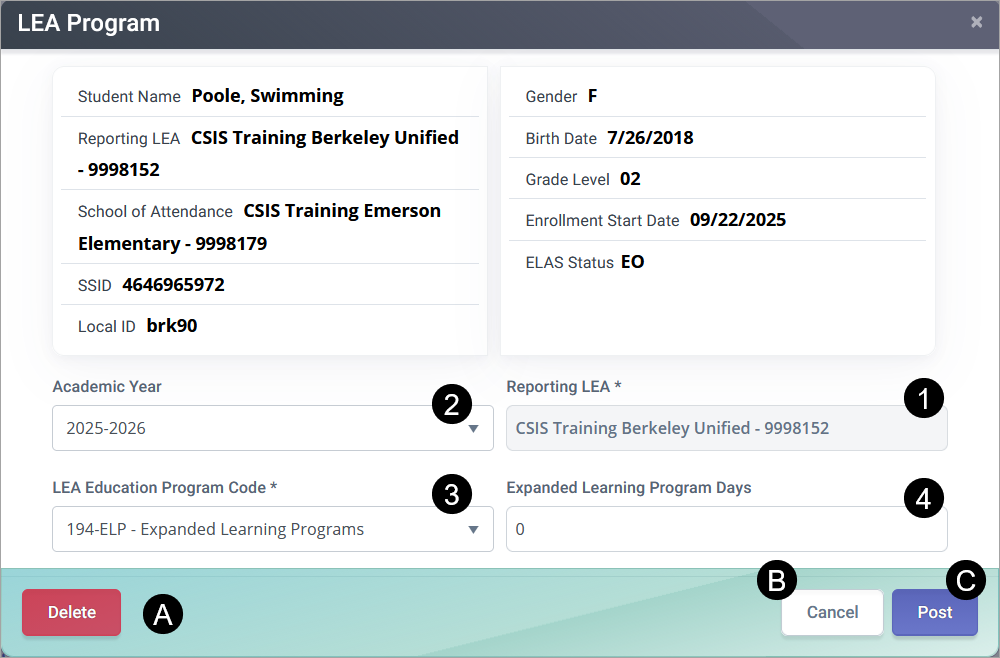
The LEA Program Details modal is depicted below followed by a screen elements table. If the user clicks to open an existing record, the Student Programs page appears with the values from the student’s selected record. If the Add a New Record button is clicked, all fields on the page will be populated with Null values when the page opens. LEA-level users will be able to modify the School of Attendance, but School-level users will not. All other input will conform to the Screen Elements described below.
| # | Field | Required | Validation/Business Rule |
|---|---|---|---|
| 1 | Reporting LEA | Y | Default to user’s current Org; only present values related to user’s Org. Field must meet the defined CALPADS’ data validation and processing requirements. |
| 2 | Academic Year ID | Y | Must be current AY Only |
| 3 | LEA Education Program Code | Y | Use Program Code 194. |
| 4 | Expanded Learning Program Days | Y | 1) If the student was enrolled in the program, but did not participate, the value of zero is expected. 2) The value must be a whole number (no decimals), so LEAs should round up to the nearest integer (e.g. if the student participated for 5 minutes, then report 1 full day). This SPRG record must overlap an enrollment at a school within the LEA; however, it may include days participated outside of the enrollment, but still within the LEA's school year. |
| Action Buttons | |||
| A | Delete Record | N/A | If clicked, the system will delete the student’s program record from the ODS when the user confirms the deletion. “Are you sure you want to delete this record? Yes/No” |
| B | Cancel | N/A | If clicked, the modal will close and the system will display the Program Container page. |
| C | Post | N/A | If the user clicks the button, system will post records. If not successful, “Post failed” with accompanying error message will appear. |
LEAP Additional Resources
| Resource | Description |
|---|---|
| CALPADS Flash #305 | New 2025-26 Data Collections for Attendance Recovery Program and Expanded Learning Programs. |
| ELP At a Glance | Summarized content about Expanded Learning Program |
| CALPADS Error List | Look for LEA Program Errors. |
| CALPADS File Specifications | Look for Student LEA Program Tab. |