New User Authentication
CALPADS is transitioning to a new User Authentication system which will require all users to acquire a new username and password. During the authentication transition window, all existing CALPADS users must create a new username ending in @calpads.org.
This guide explains:
- How existing users activate their new username
- How to log in during the transition window
- LEA Admin responsibilities for managing new accounts
- How to identify users who have not transitioned
- All users must acquire their new username/password during the transition window: March 10, 2026 – May 1, 2026
- Users are encouraged to get their new username/password early in the transition window
- Users that fail to do so will not be able to log into CALPADS after the transition window closes on May 1, 2026. These users must work with their LEA CALPADS Administrator to establish a new username/password
Video Tutorial for LEA Admin Users
Video for Non-LEA Admin Users
Step-by-Step Guide: Activating and Using Your New CALPADS Username
This guide walks you through activating your new username, signing in during the transition window, and managing accounts (for LEA Admins).
Part 1: Activate Your New CALPADS Username (All Existing Users)
Step 1: Log in with Your Existing Account
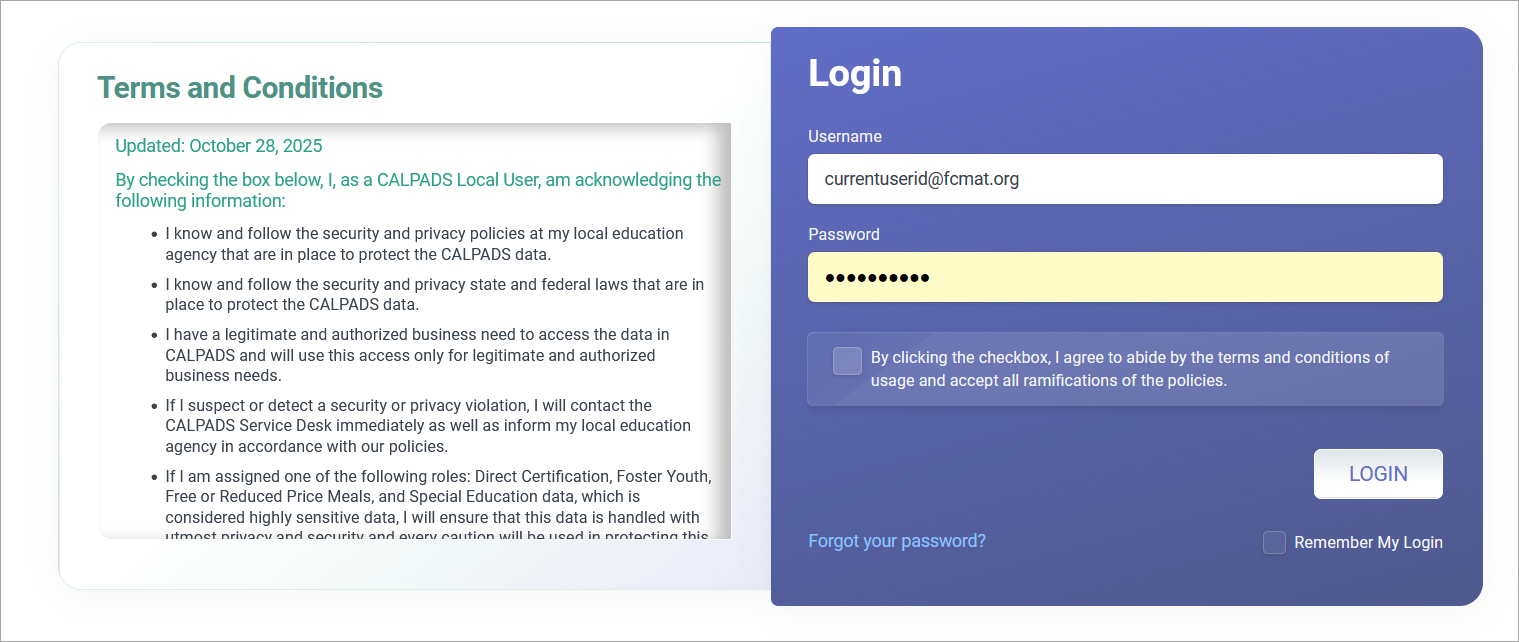
Go to the CALPADS login page. Sign in using your current (legacy) username and password.

The login process remains unchanged at this point.
Step 2: Select “Activate New CALPADS Username”
After logging in, locate and click the light green button labeled: 'Activate New CALPADS Username'.

Enter the username you want to use. (See allowable characters). All new usernames will end with @calpads.org. Please refer to your LEA Administrator for any LEA-specific userid format that needs to be followed.

Type/Submit your selection and click on "Activate" button to submit.

You should see a message confirming that your new username was created successfully. Copy paste the next steps on a notepad for referrence after closing the window.

Step 3: Log Out Properly
⚠️ Important:
Do not just close your browser. Click Log Out inside CALPADS to properly end your session.

Step 4: Check Your Email
Open your email inbox. Look for a message from CALPADS (no-reply account).
The email will contain:
- Your new @calpads.org username
- A temporary password

Step 5: Log in Using Your New Credentials
Return to the dual login page. Select the option on the right side for the New CALPADS Username.

Enter username information in the modal. This is your new username with the @calpads.org extension

Enter the required temporary password from the email and create your permanent password.

Review and accept the User Agreement.

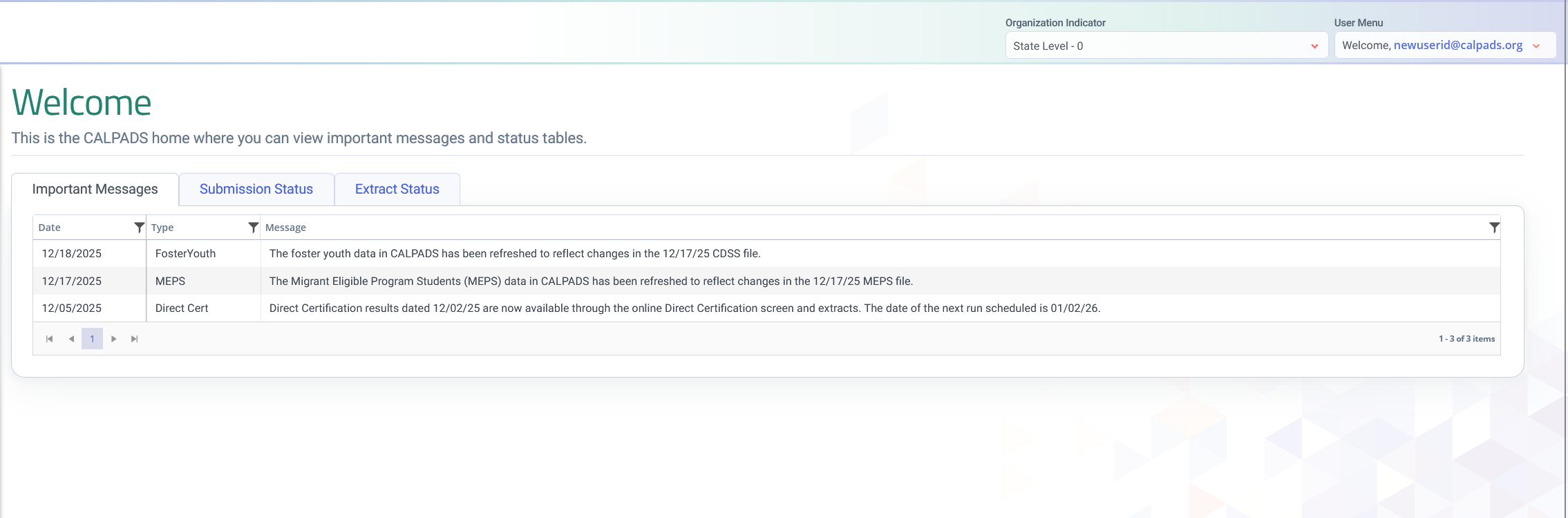
Once signed in, the “Activate New Username” button will no longer appear. You are now fully transitioned.
Signing In During the Transition Window
During the transition period:
- You may log in using your old credentials, OR
- You may log in using your new @calpads.org credentials
When logging in with your new account:
- Enter your new username.
- Enter your permanent password.
- Choose whether to stay signed in (optional).
NOTE: "Multi-Factor Authentication (MFA)" MFA will be implemented in a future phase. During the initial transition window, only your username and password are required.
LEA Admin: Managing Accounts During Transition
LEA Administrators can continue managing users during the transition window.
Navigate to:
User Management
You will see two categories of options.

Legacy Account Options (Historical Accounts) (A)
- User List
- Users and Roles
- Add New User
These apply to older accounts.
New Account Options (Use During Transition)(B)
- New CALPADS Accounts List
- Add New CALPADS Account
These options manage the new authentication system.
Searching for Users
Within New CALPADS Accounts List, you may search by:
- First Name
- Last Name
- Email Address
- Username
Running the New User Extract
- Select the option to generate the extract.
- Submit the request.
- Navigate to Extracts to retrieve the file.
- The extract is caret-delimited (
^).
Formatting the Extract in Excel
To make the file readable:
- Highlight the first column.
- Select the Data tab.
- Click Text to Columns.
- Choose Delimited.
- Click Next.
- Enter the delimiter:
- Press
Shift + 6(caret symbol^) - Click Finish.
- Adjust column widths as needed.
Reviewing Transition Status
In the Username field:
- If a
.orgusername appears → User has transitioned. - If blank → User has not created a new account.
!!! danger "End of Transition Window" Accounts without a new username will be removed at the end of the transition period.
LEA Admins should identify and notify users who have not yet completed the activation process.
Adding a Brand-New CALPADS User
Use Add New CALPADS Account only for:
- Brand-new employees
- Individuals who have never had CALPADS access
Important Expectations
!!! note
Users are expected to select their own username and password.
LEA Admins should not create usernames/passwords for the entire organization.
Steps to Add a New User
- Navigate to User Management.
- Select Add New CALPADS Account.
- Enter the required information.
- Submit the request.
The new user will automatically receive:
- A temporary password
- Instructions to establish a permanent password
Assign Roles
NOTE: User"Role Assignment Required"
- New users must be assigned appropriate roles.
- Without roles, they will not be able to access system functionality.
Support & Resources
When the authentication update was announced, requirements and rules were included in the CALPADS Flash #319.
If assistance is needed:
- Contact the CALPADS Service Desk
- Specify that you are working with the new authentication system
- Indicate that you are creating or activating a new username
The Service Desk will assist with transition-related issues.